

Support Center > Security
How to Set-up 2FA (Two-Factor Authentication) on Koinpark?
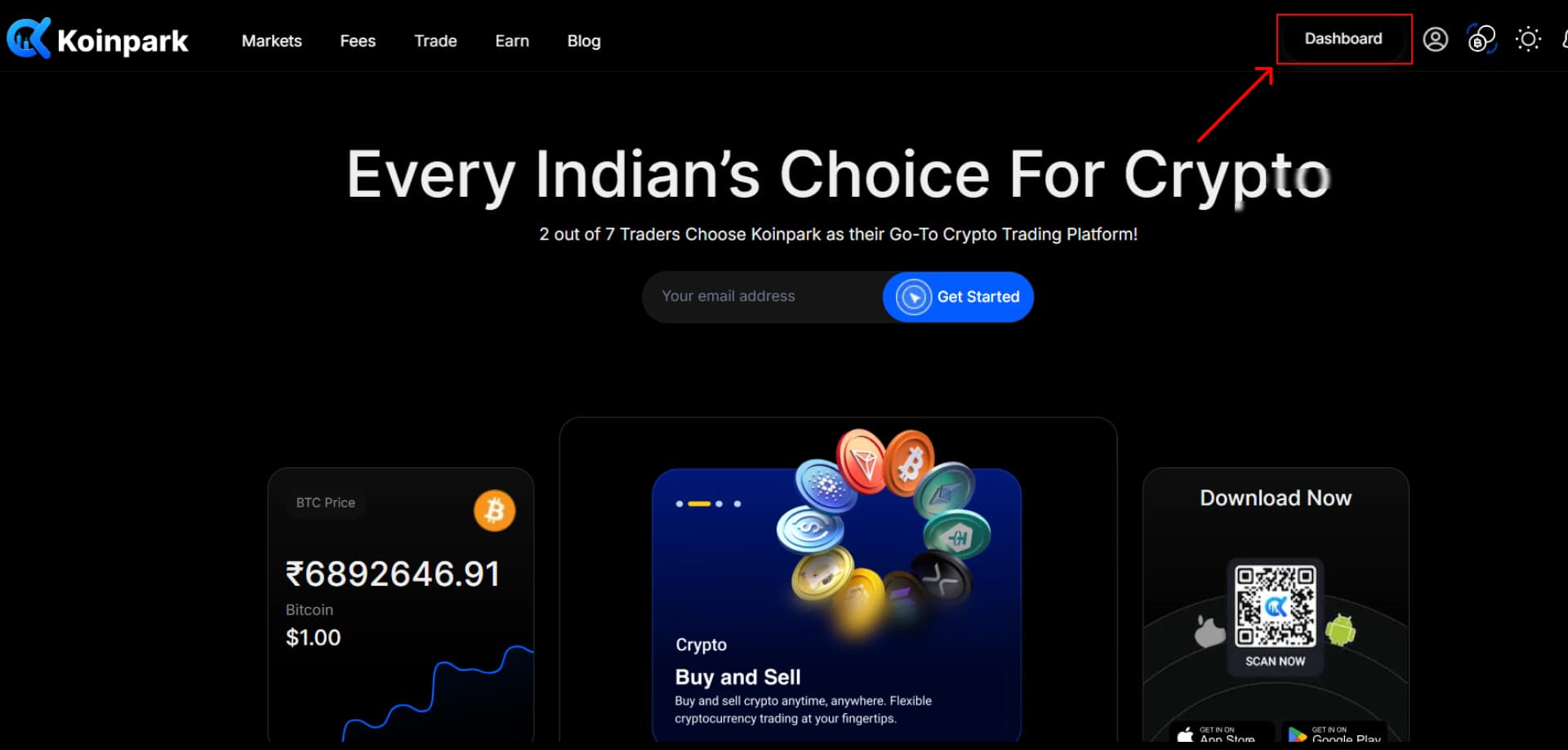
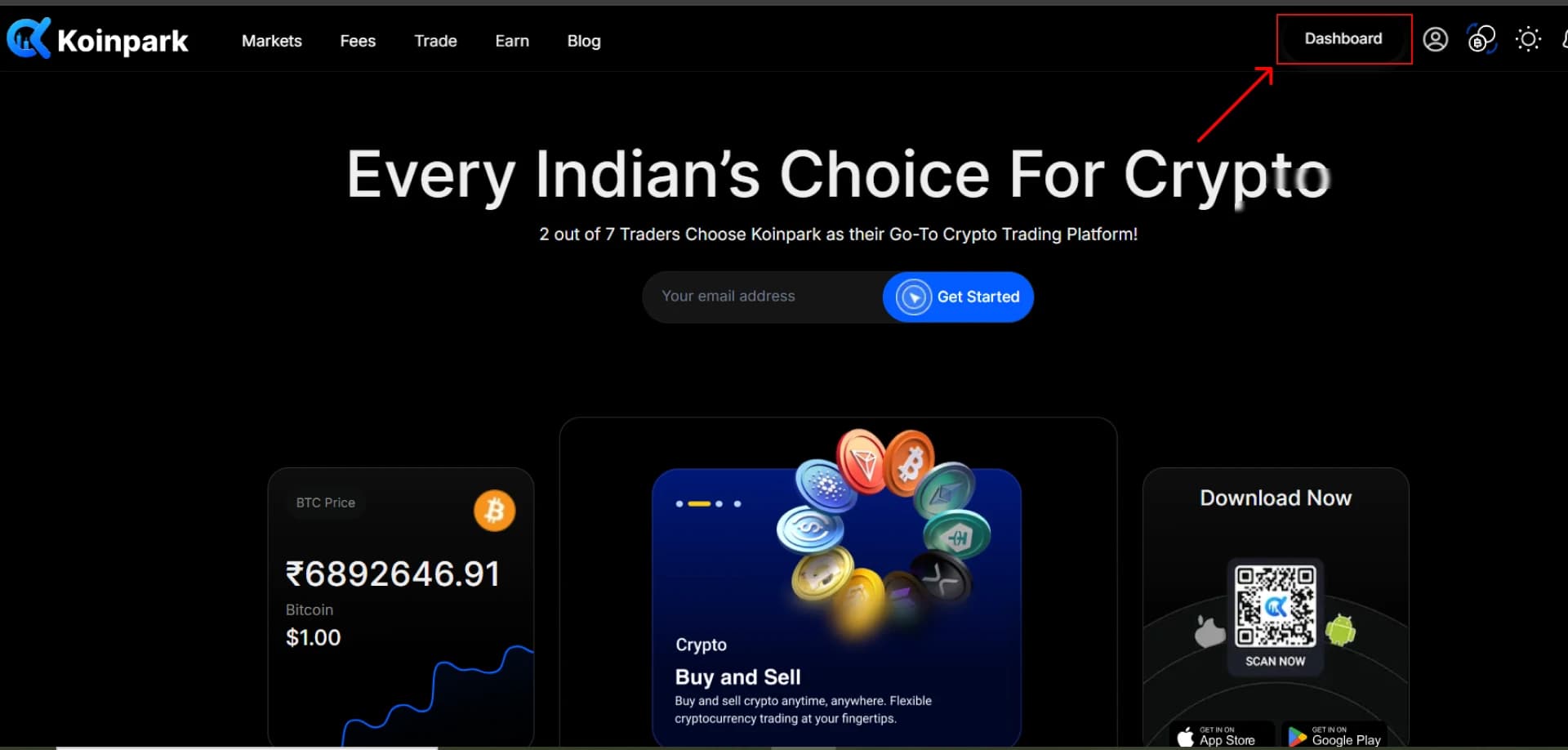
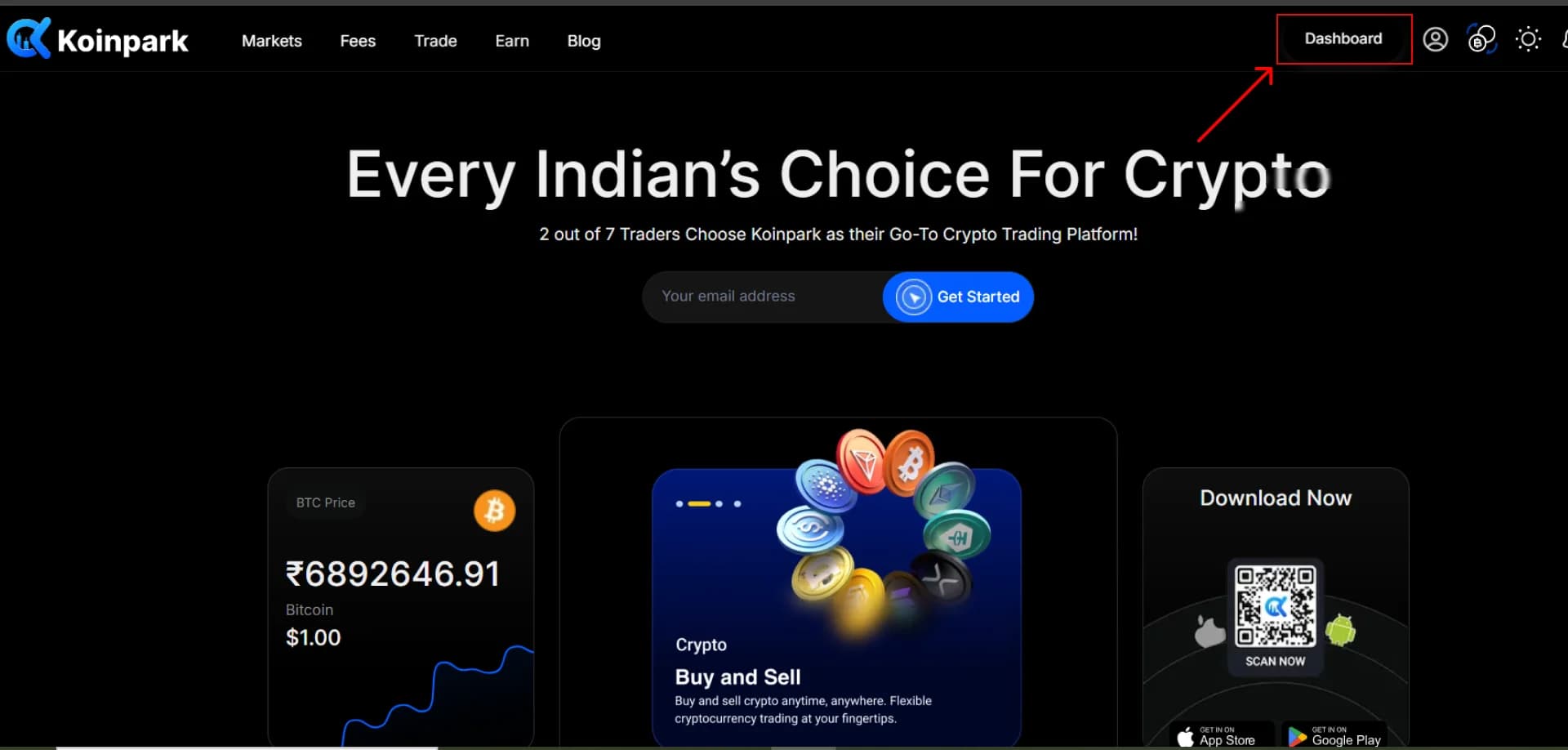
To set up your 2FA, you must go to your [Dashboard].
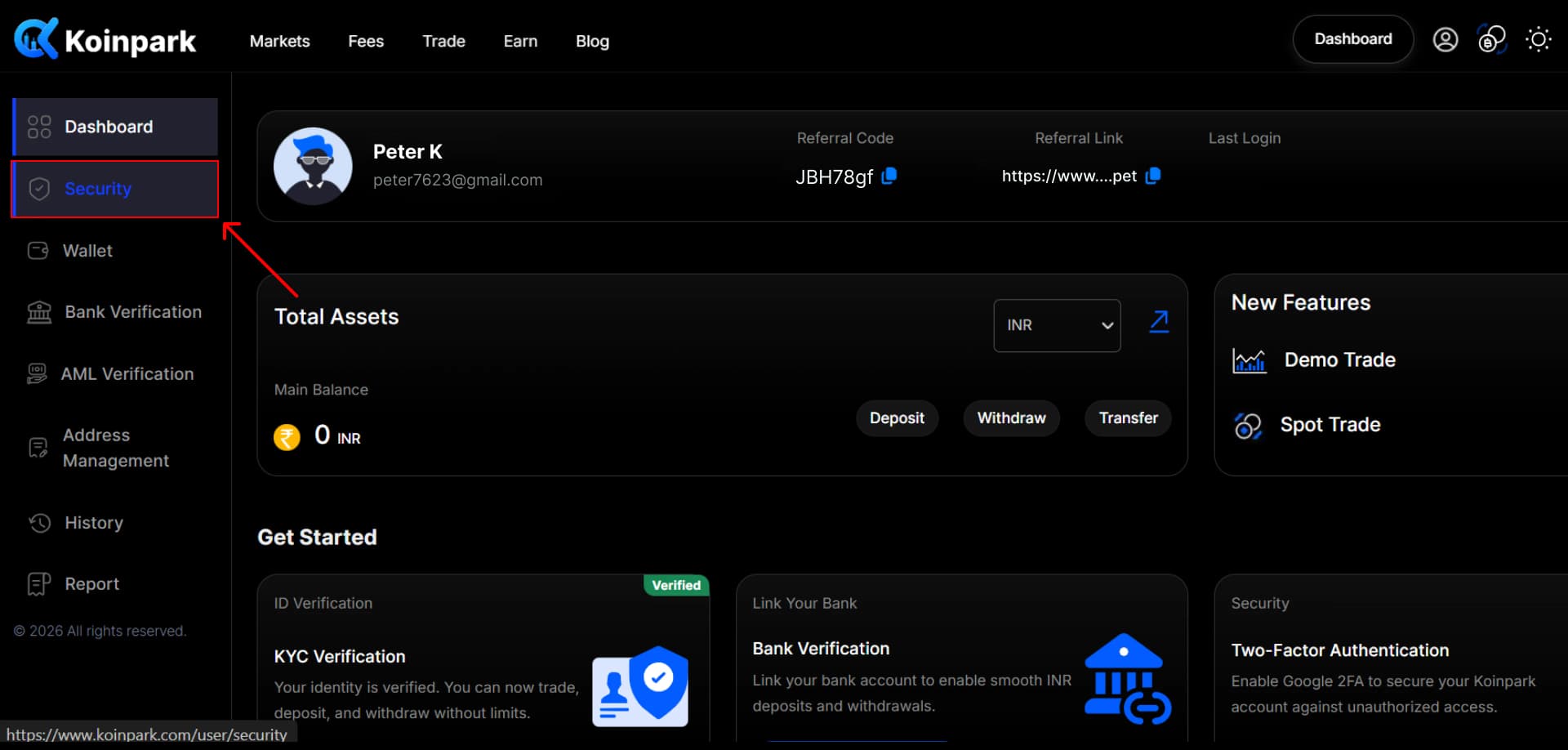
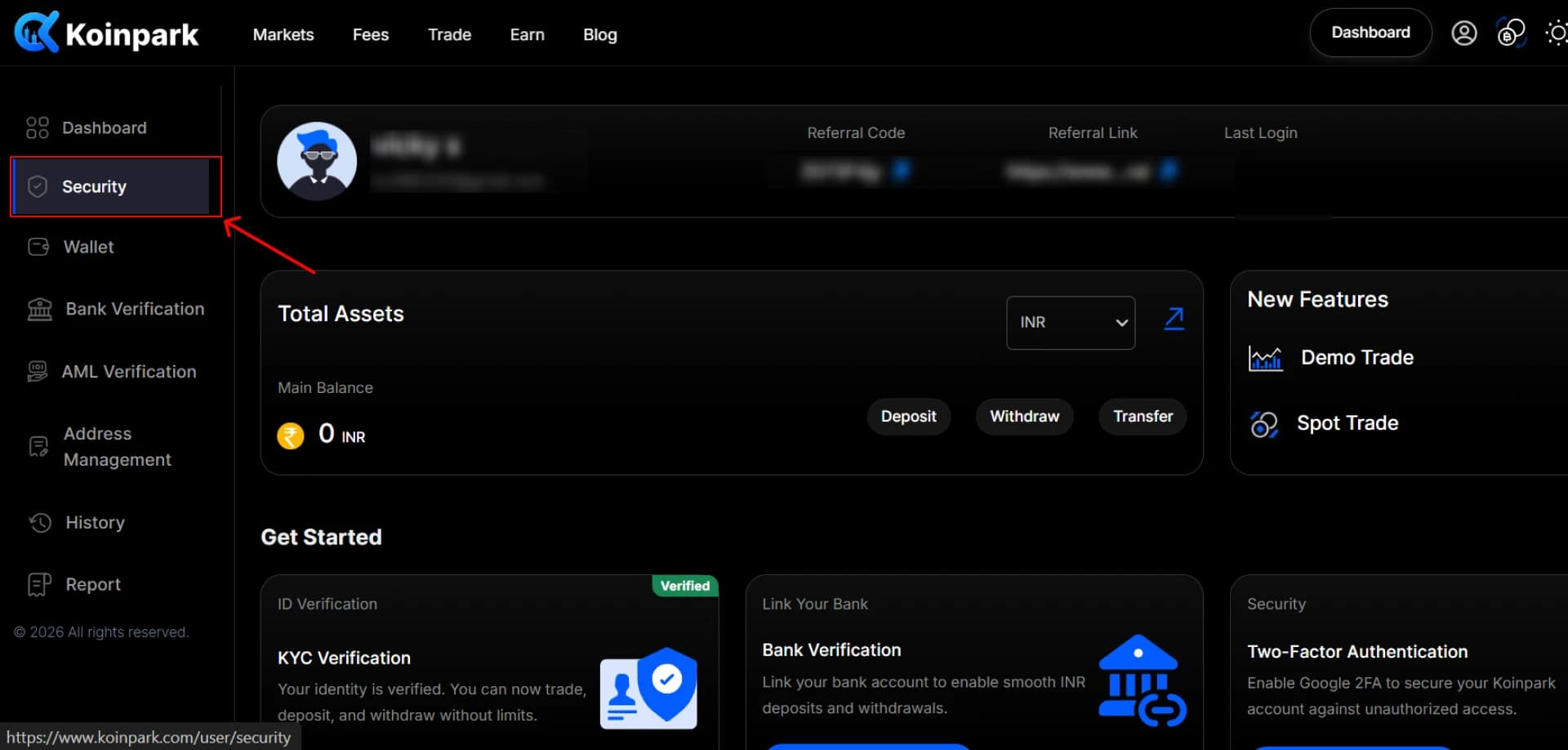
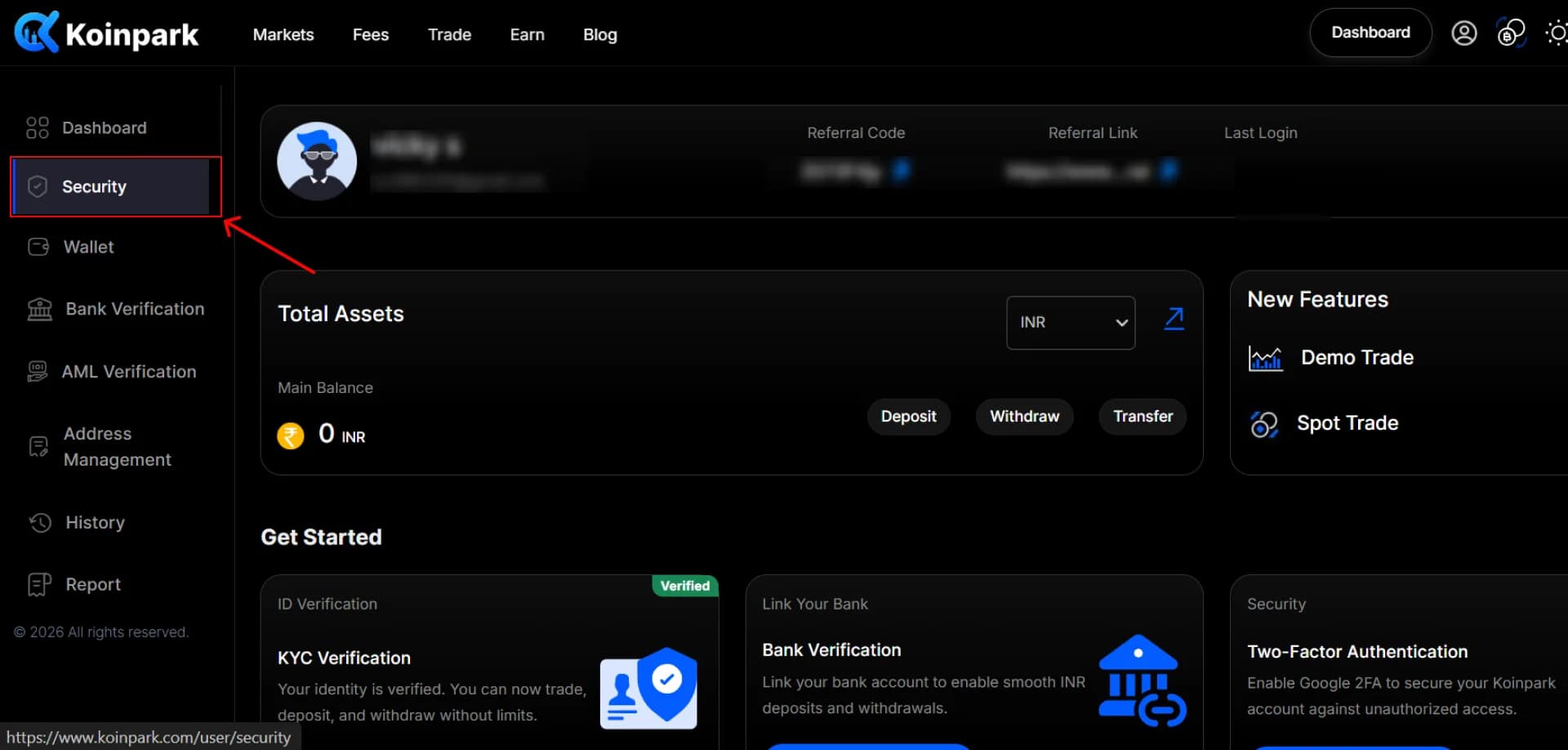
After that, check for the [Security] field and click on it.
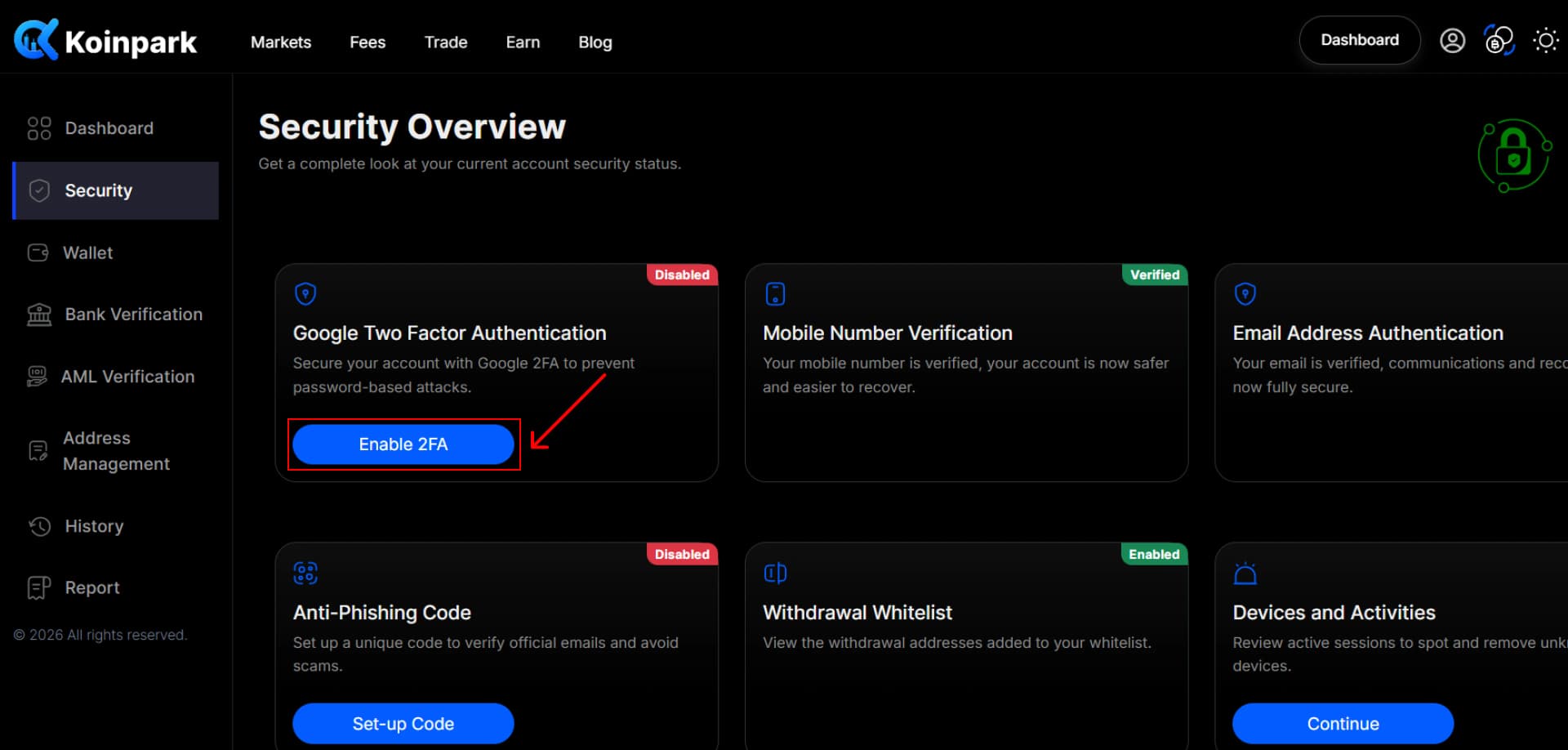
Locate Google Two Factor Authentication and click [Enable 2FA].
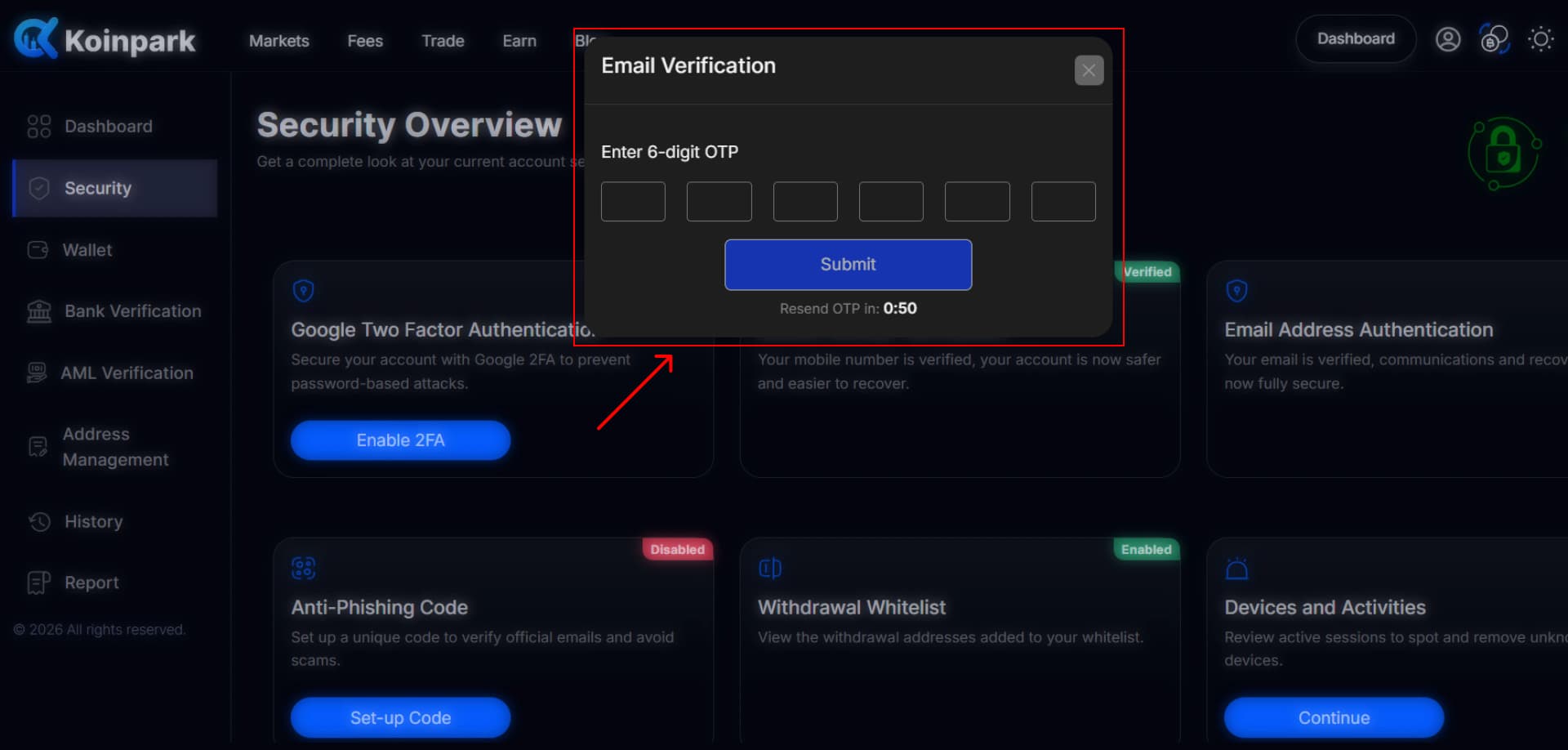
A 6-digit verification code will be sent to your email, enter it in the field below and click [Submit].
Download the [Google Authenticator] extension and add it to your Chrome browser.
Open the Authenticator.
Copy and enter the Authentication Code.
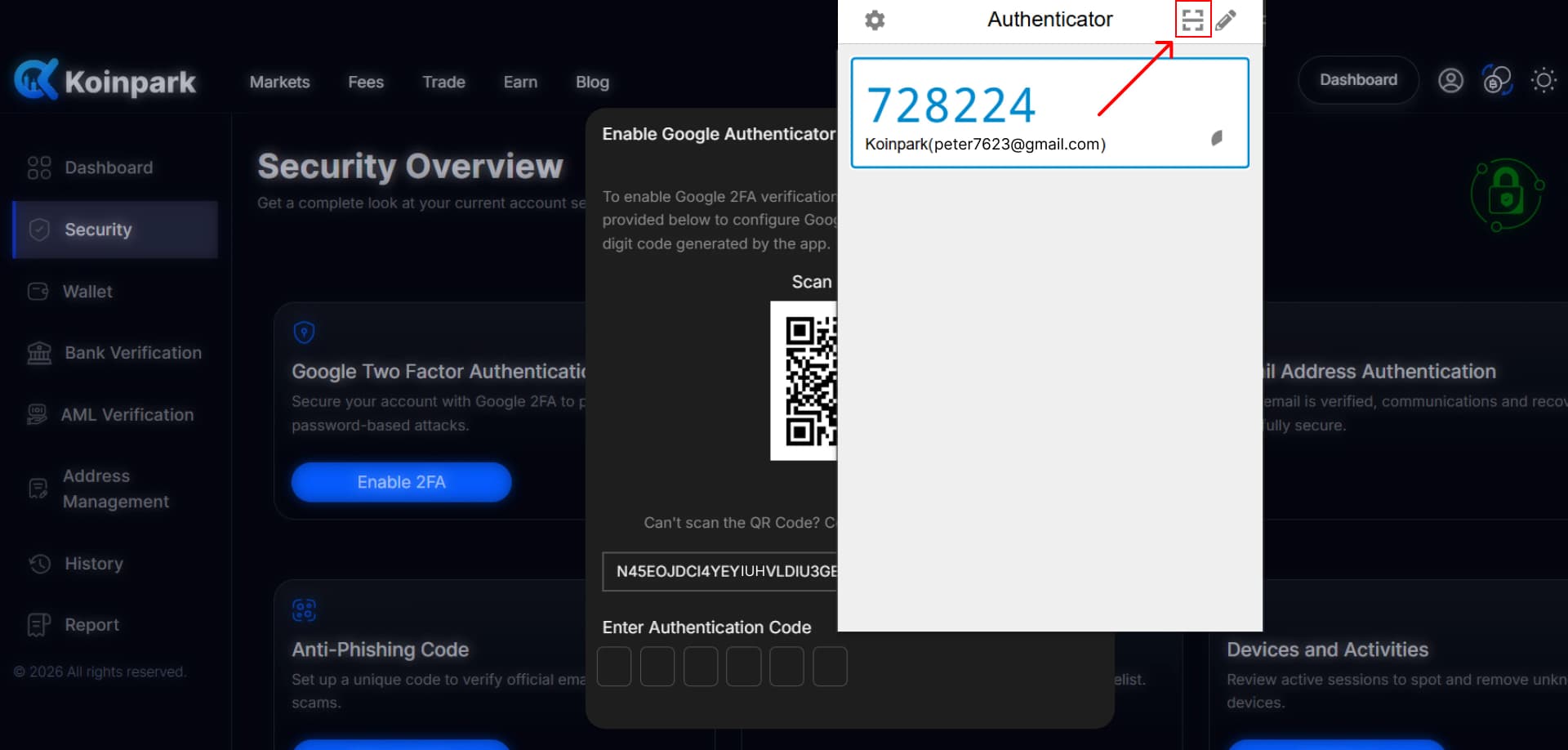
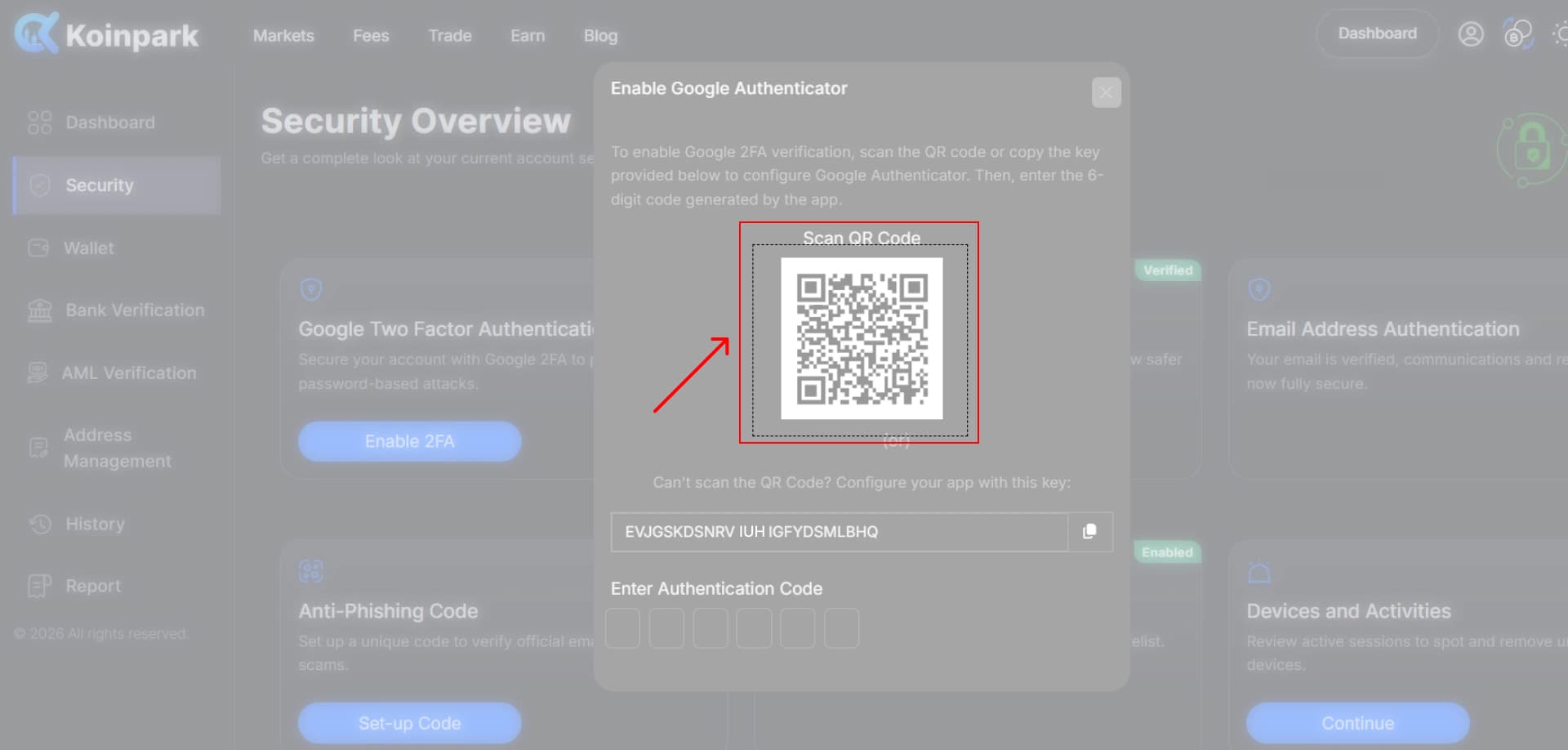
Now, scan the QR code given, and you will get an Authentication Code.
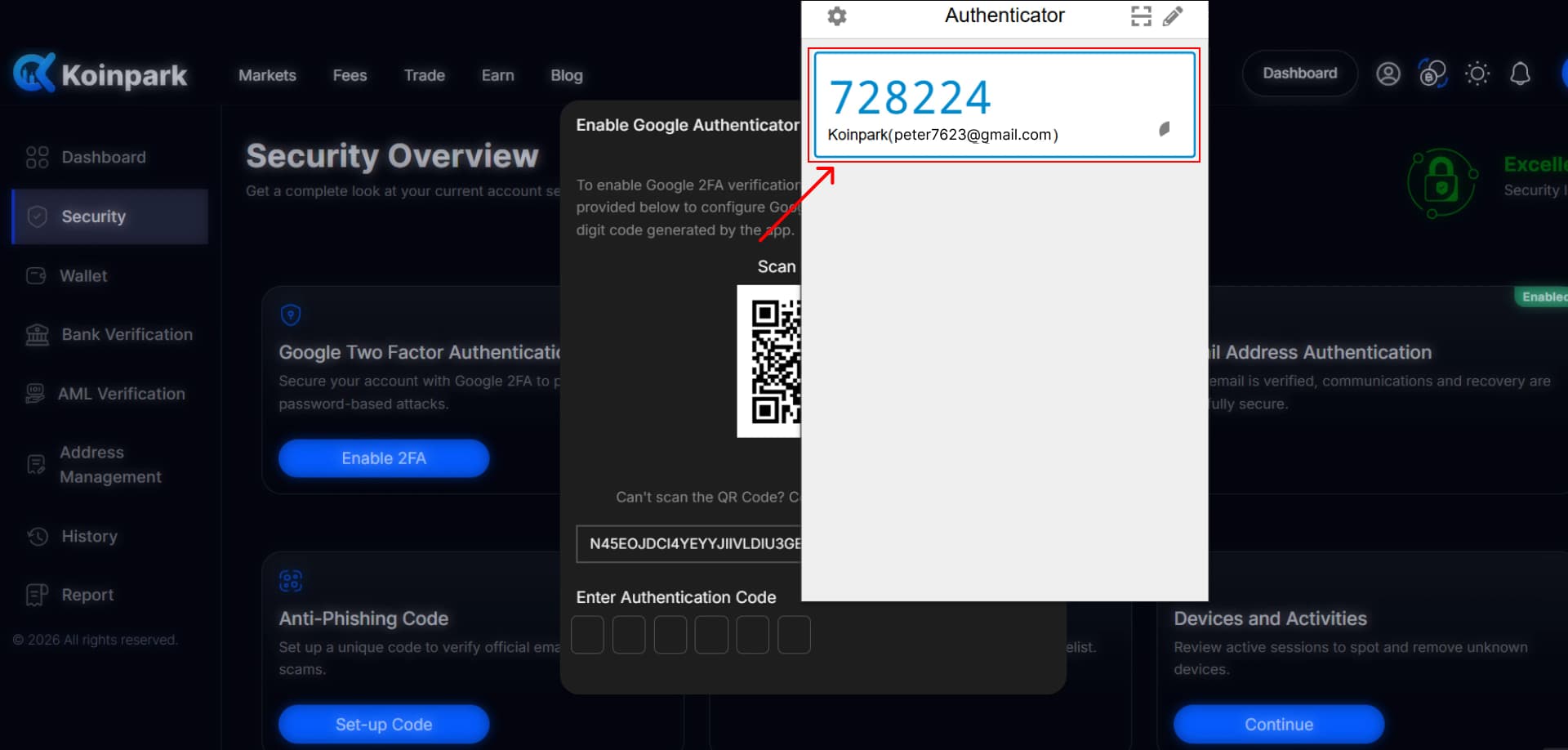
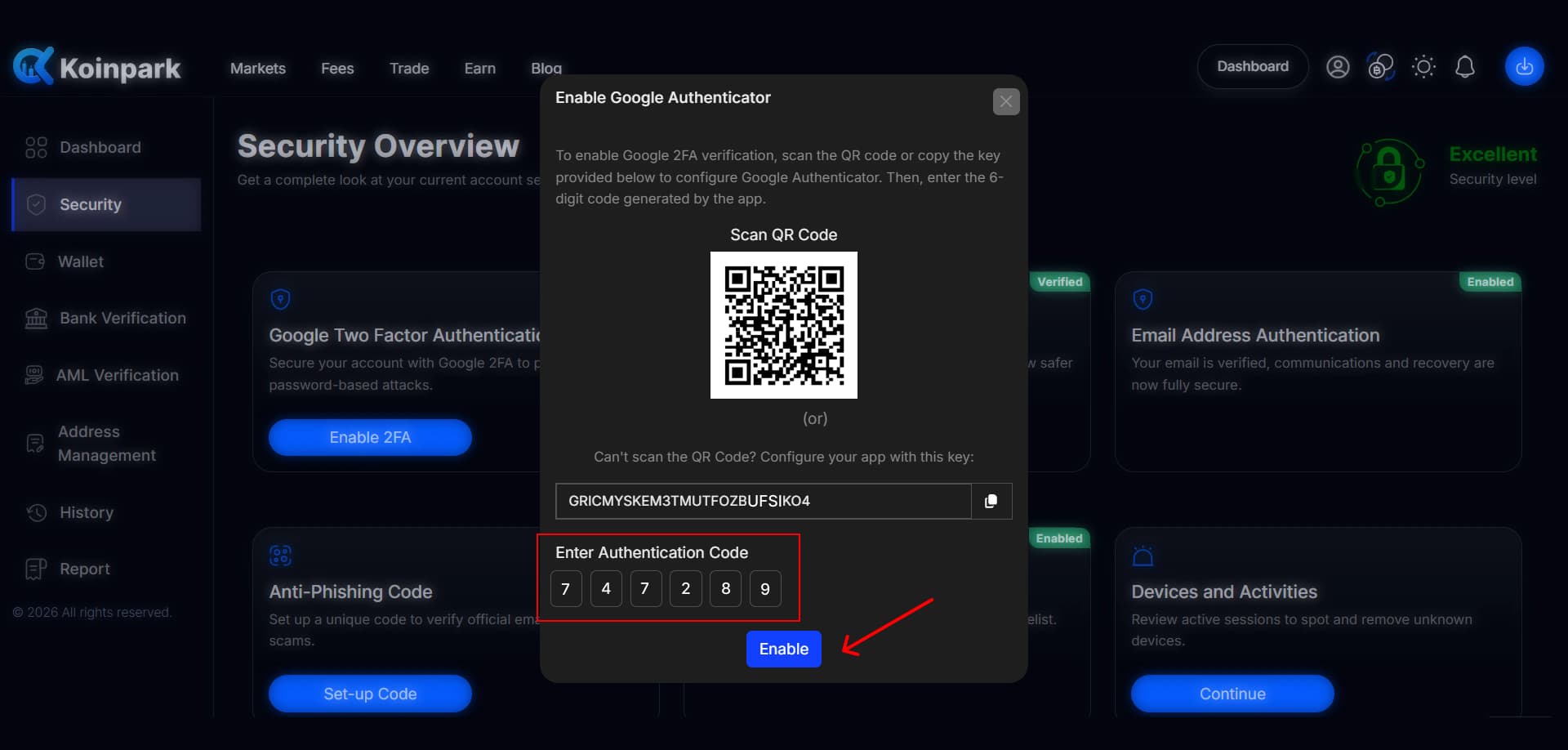
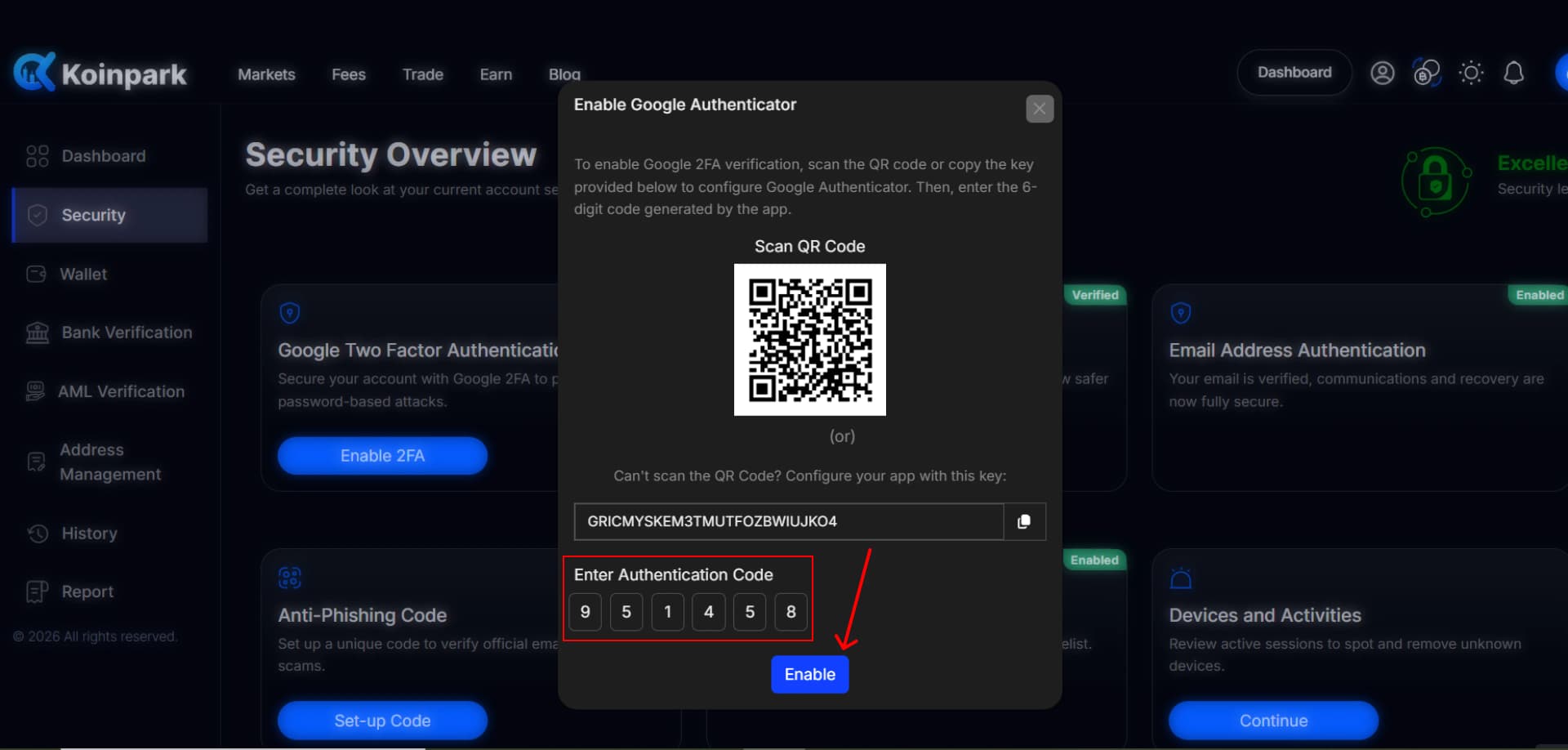
Enter the authentication code and click [Enable].
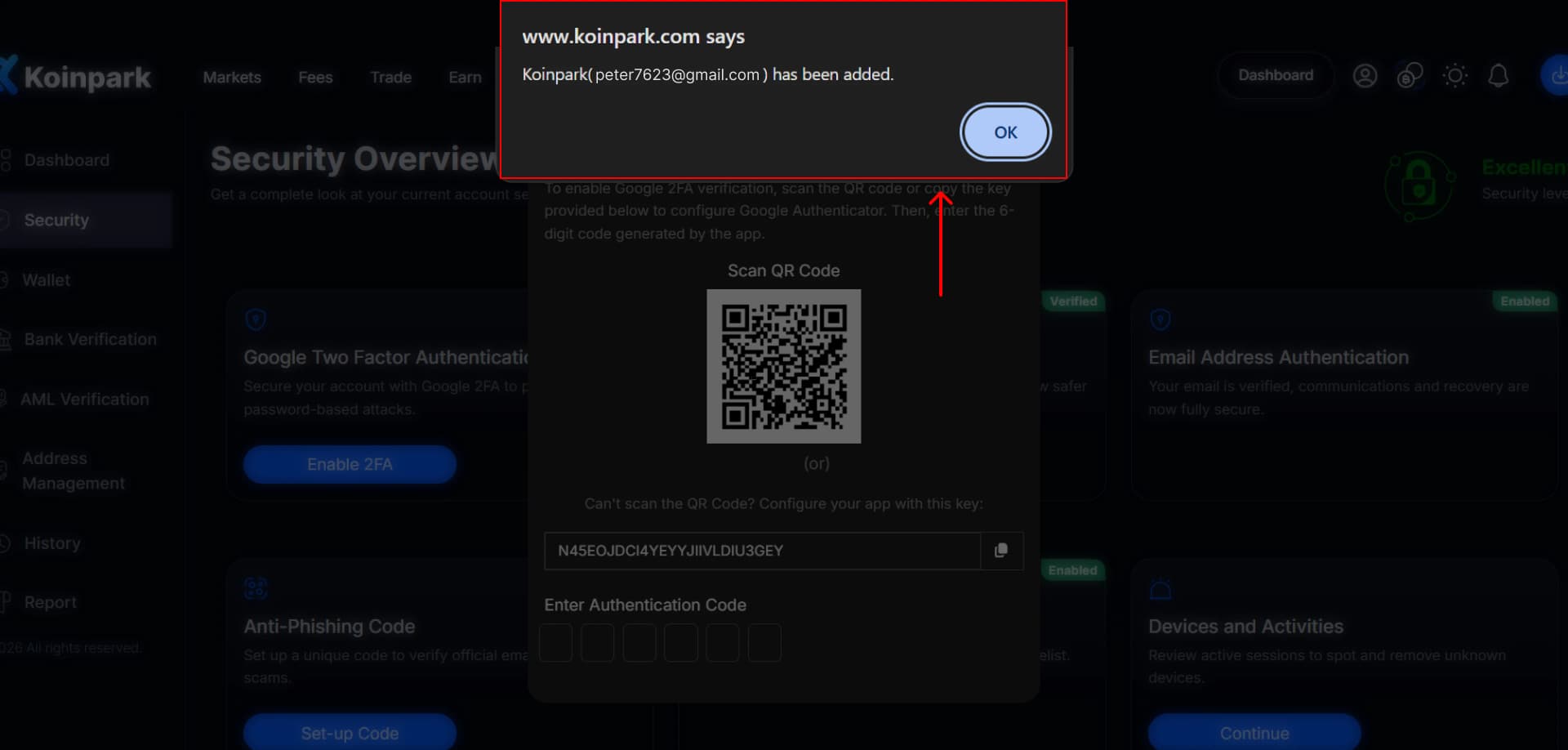
You will receive a confirmation pop-up once your email ID has been successfully added. Click [OK].
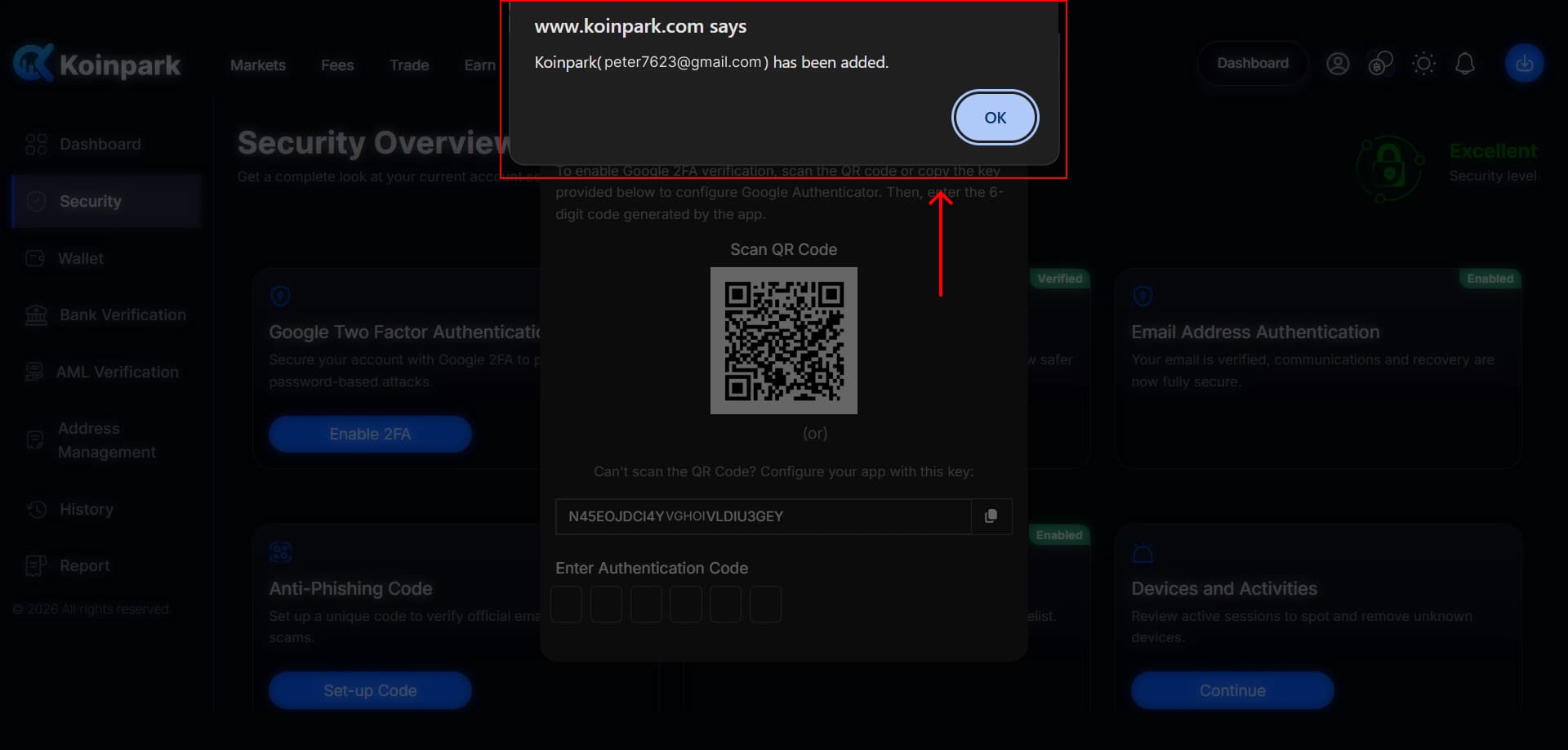
If you are unable to scan the QR code, follow the below steps.
Open the Authenticator and click on the [Pen Icon].
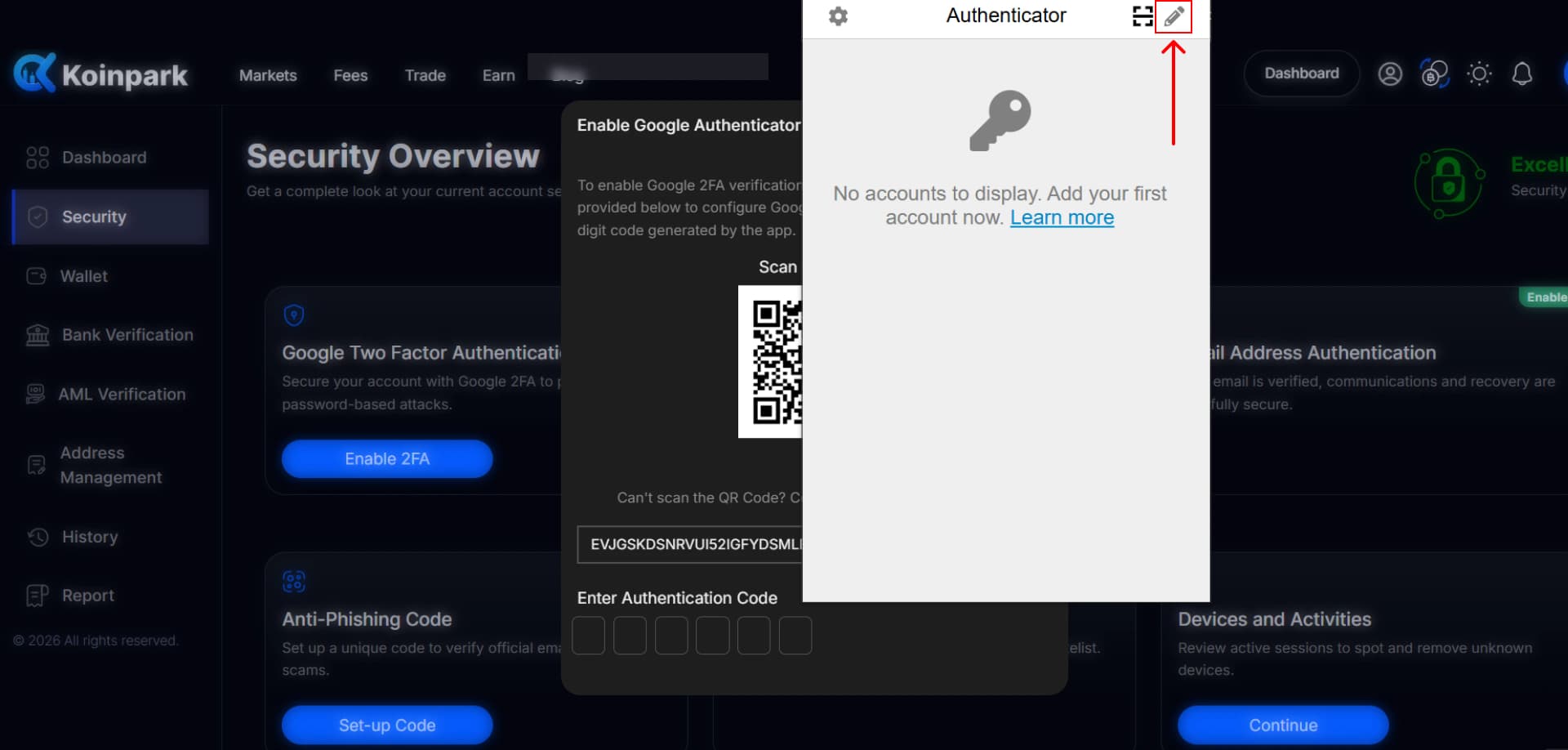
Then click the [+ Icon].
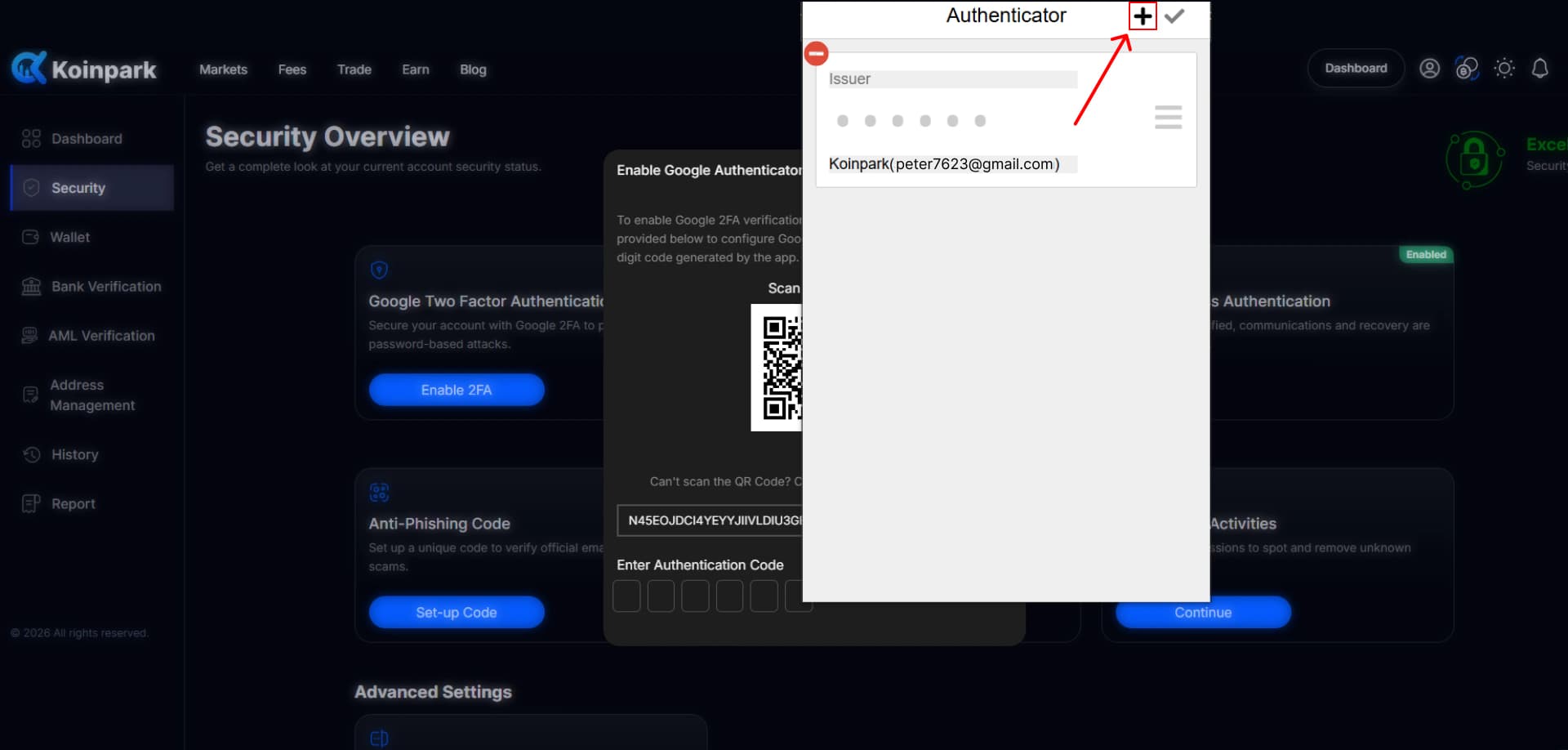
Select [Manual Entry].
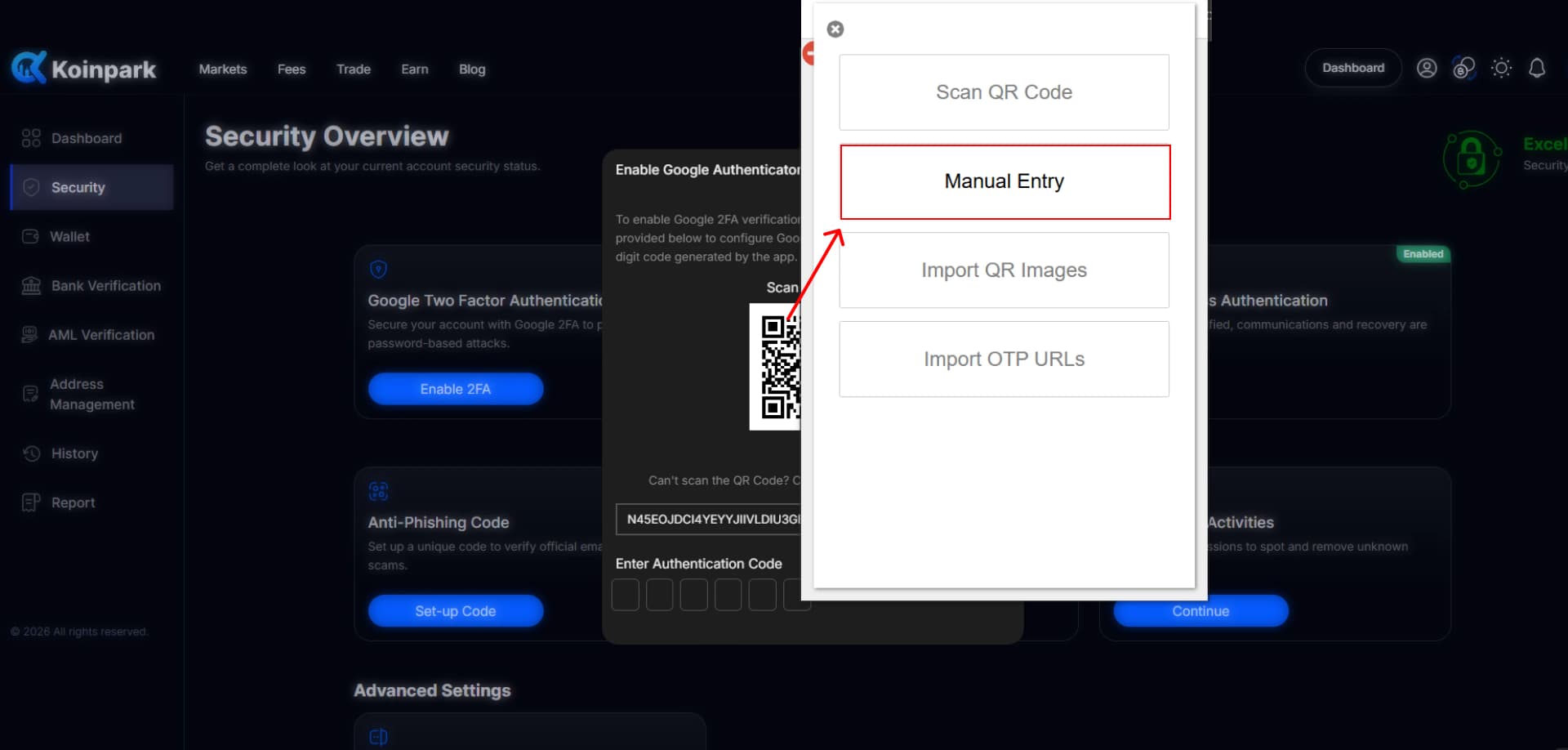
Copy the given key. Then, fill the [Issuer] field with your name or any text for your personal reference, and in the [Secret] field, paste the copied key, then click [OK].
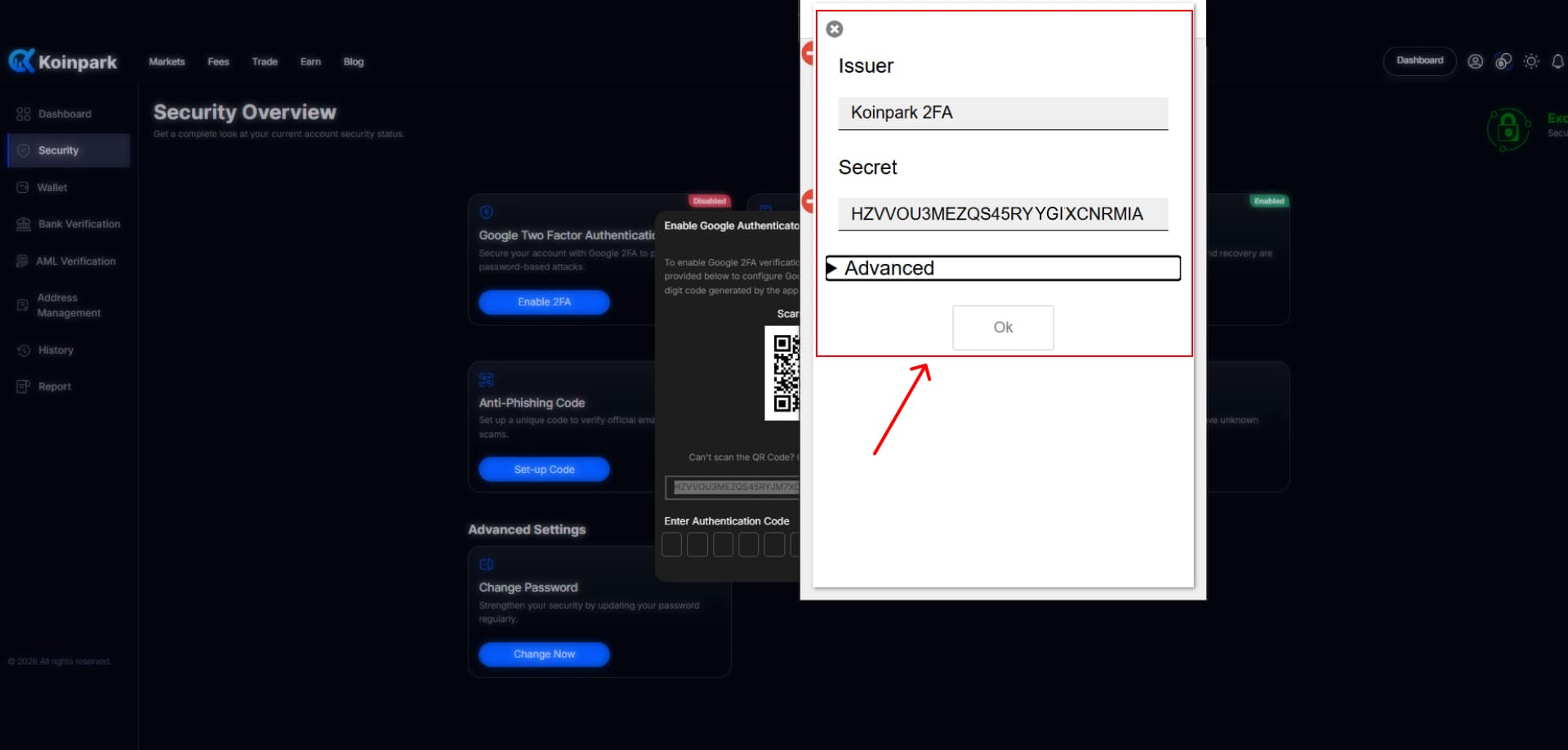
Now, you will get an authentication code and copy it.
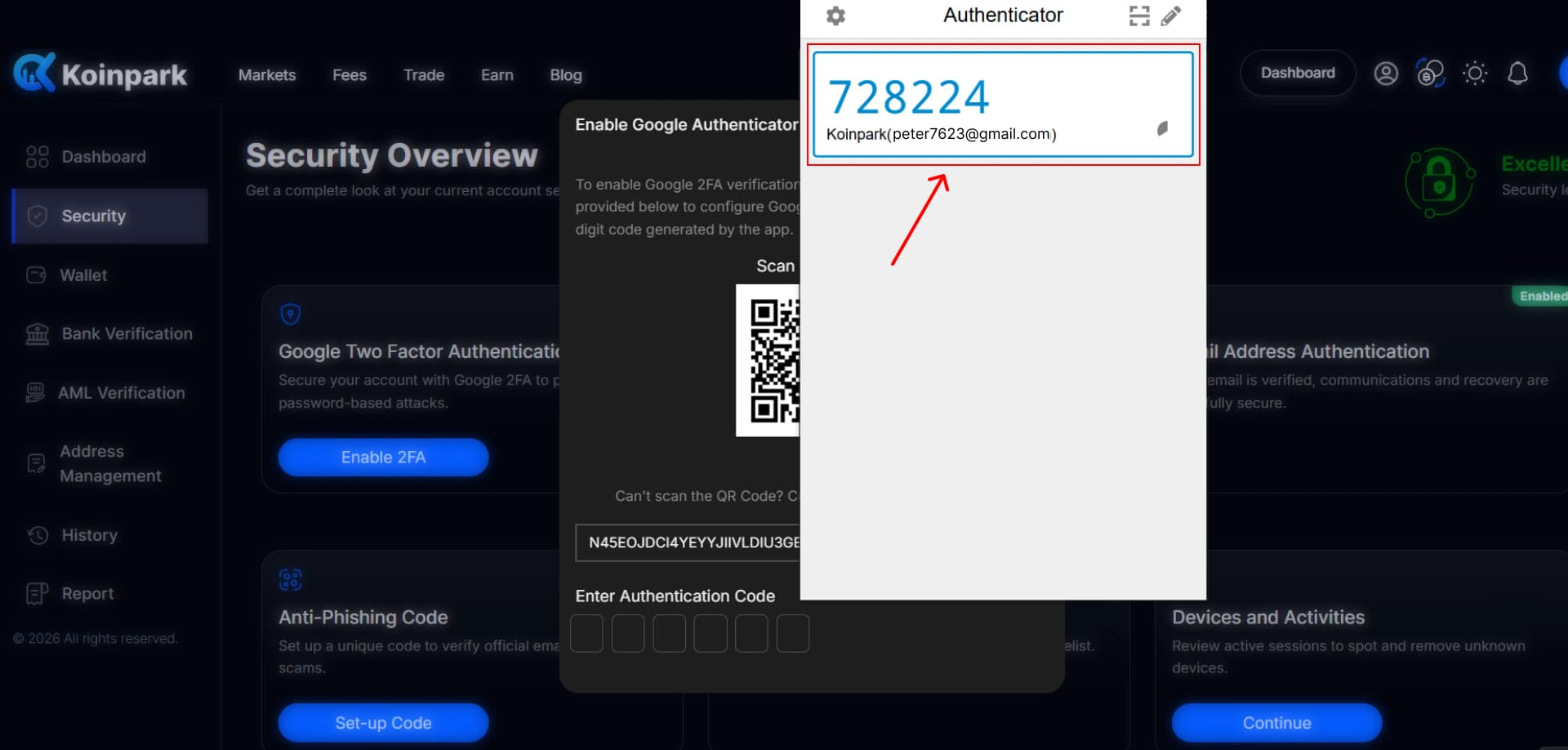
Paste the most recent code copied in the field below and click [Enable].
You will receive a confirmation pop-up once your email ID has been successfully added. Click [OK].
How to Create Anti-Phishing Code on Koinpark?
To create your anti-phishing code, go to your [Dashboard].
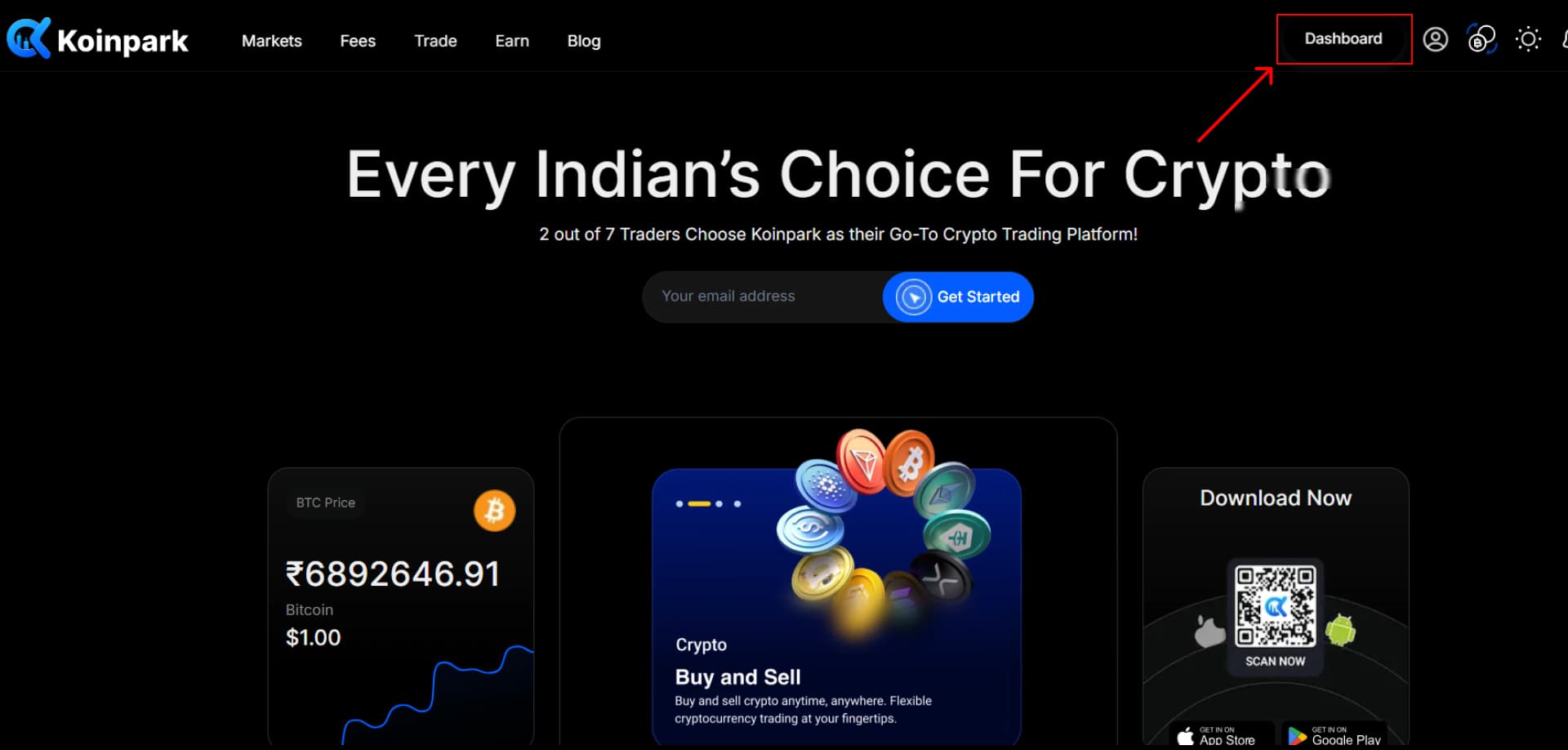
Click on the [Security] field.
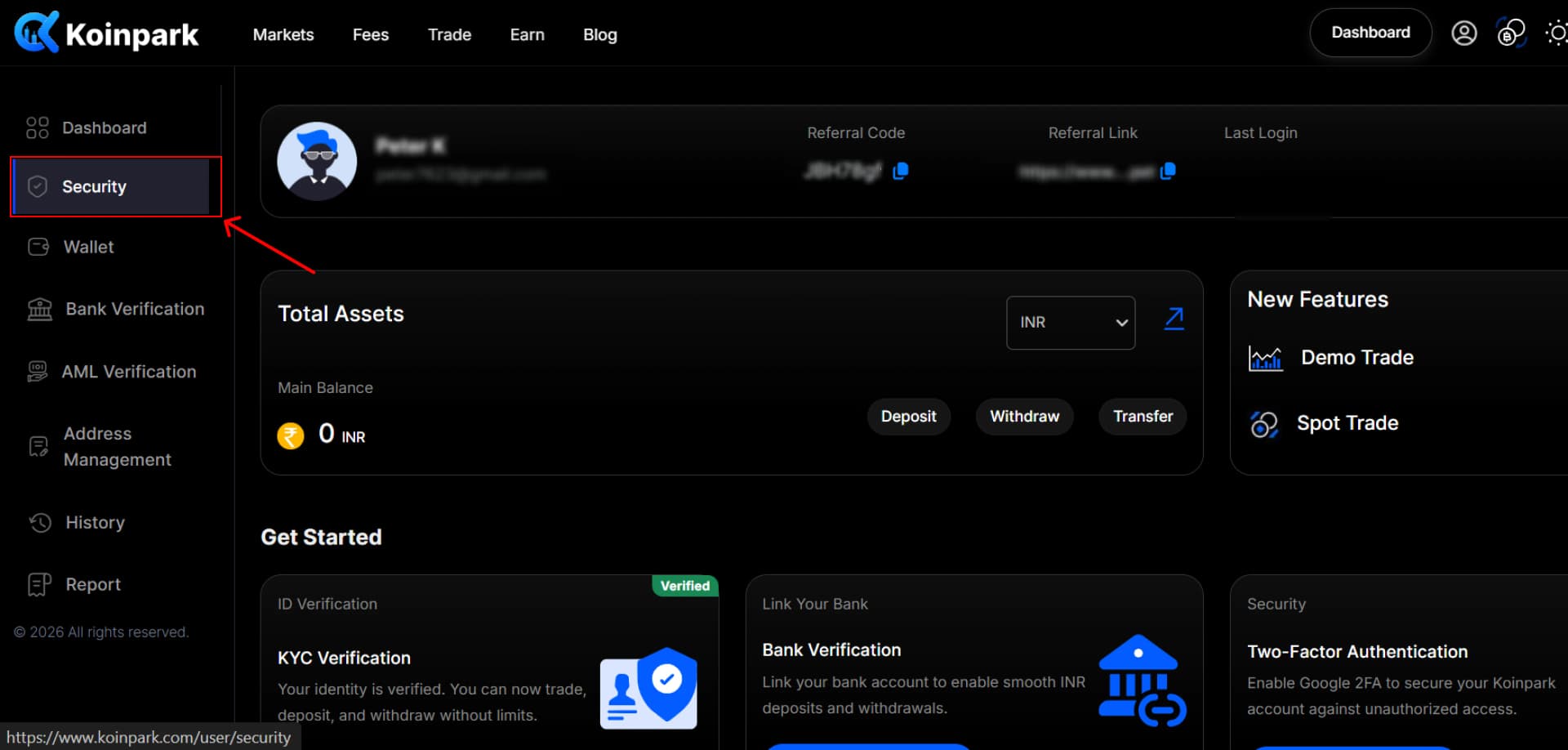
Navigate to the fourth section labeled [Anti-Phishing Code] and click [Set-up Code].
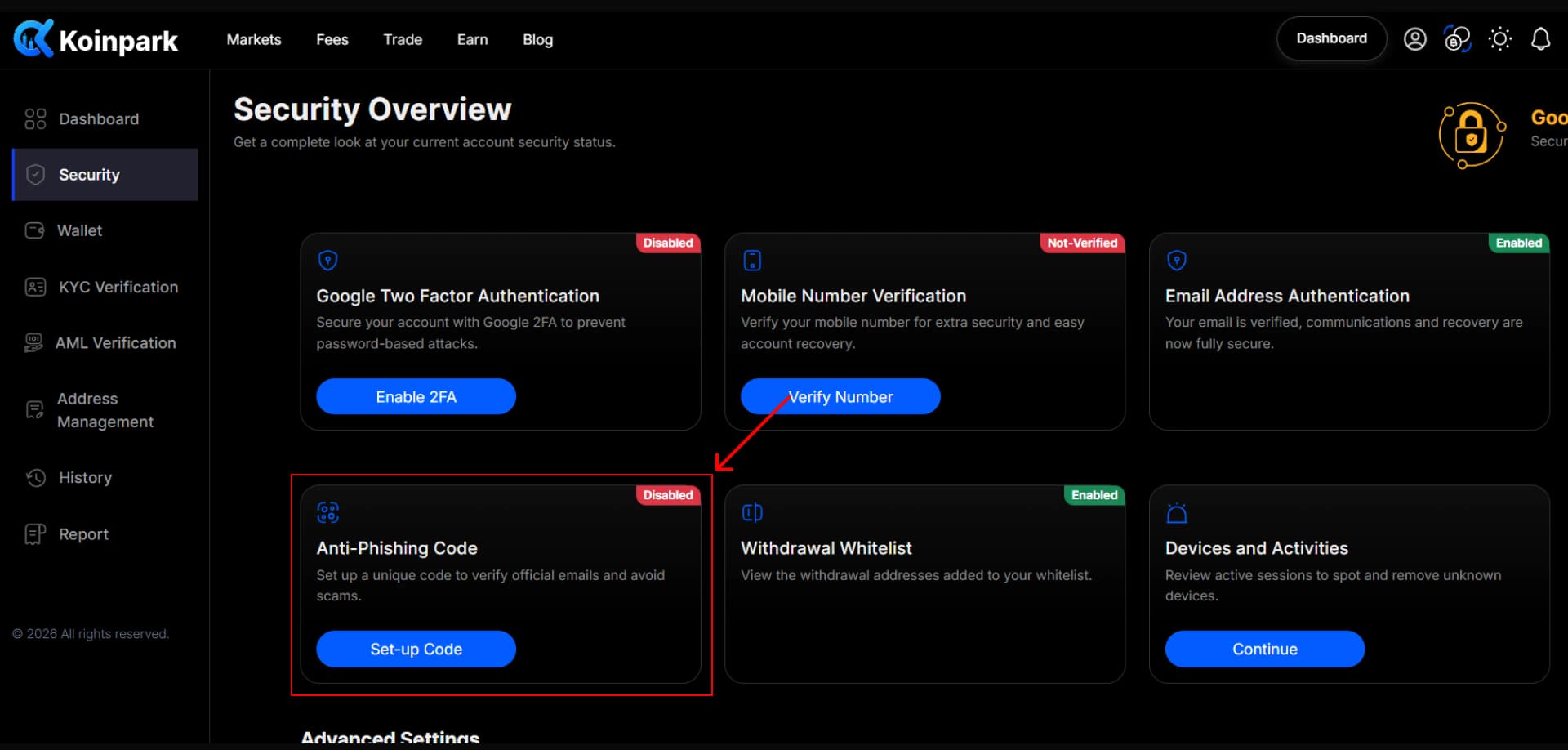
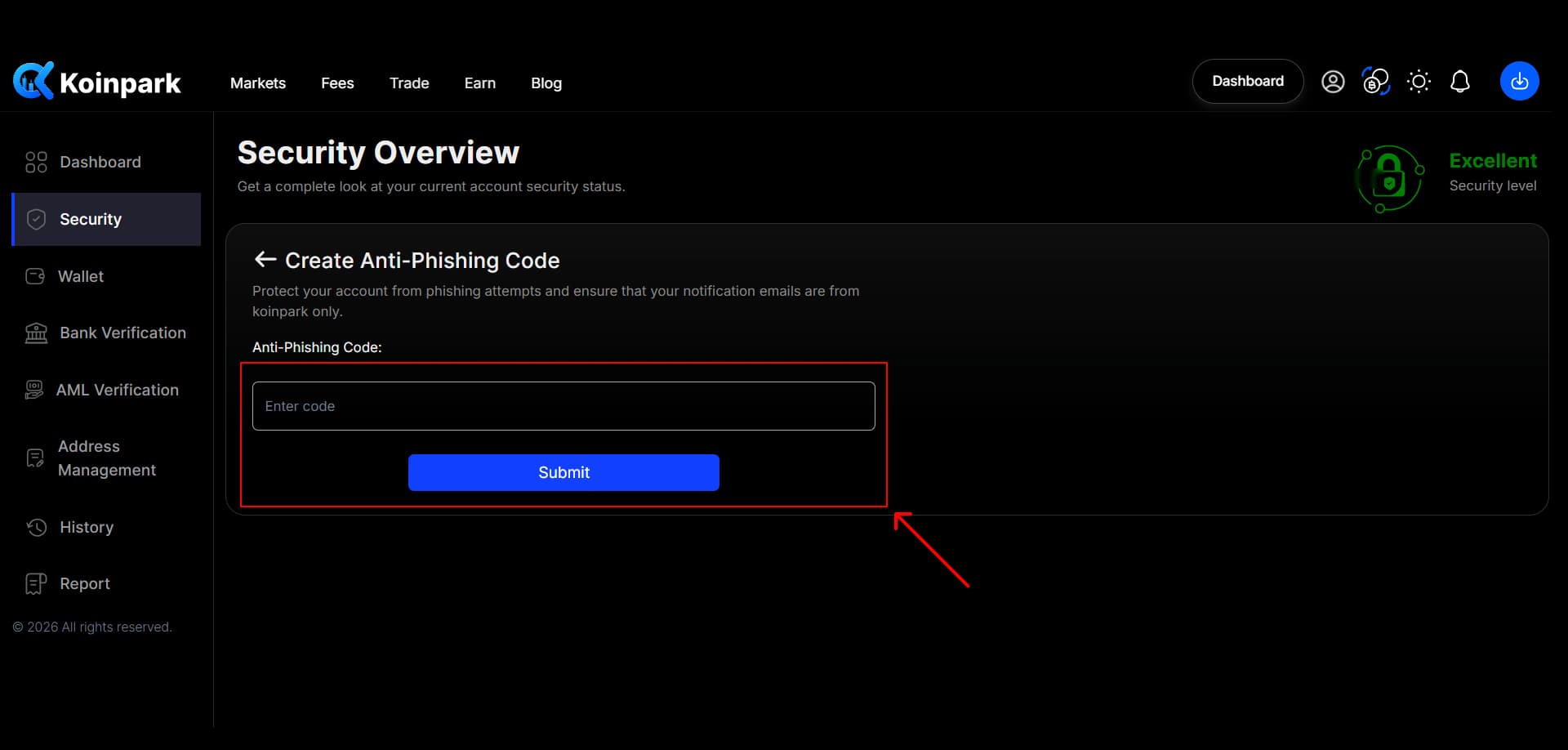
A form will pop up—read the terms and click the [Create Anti-Phishing Code] button.
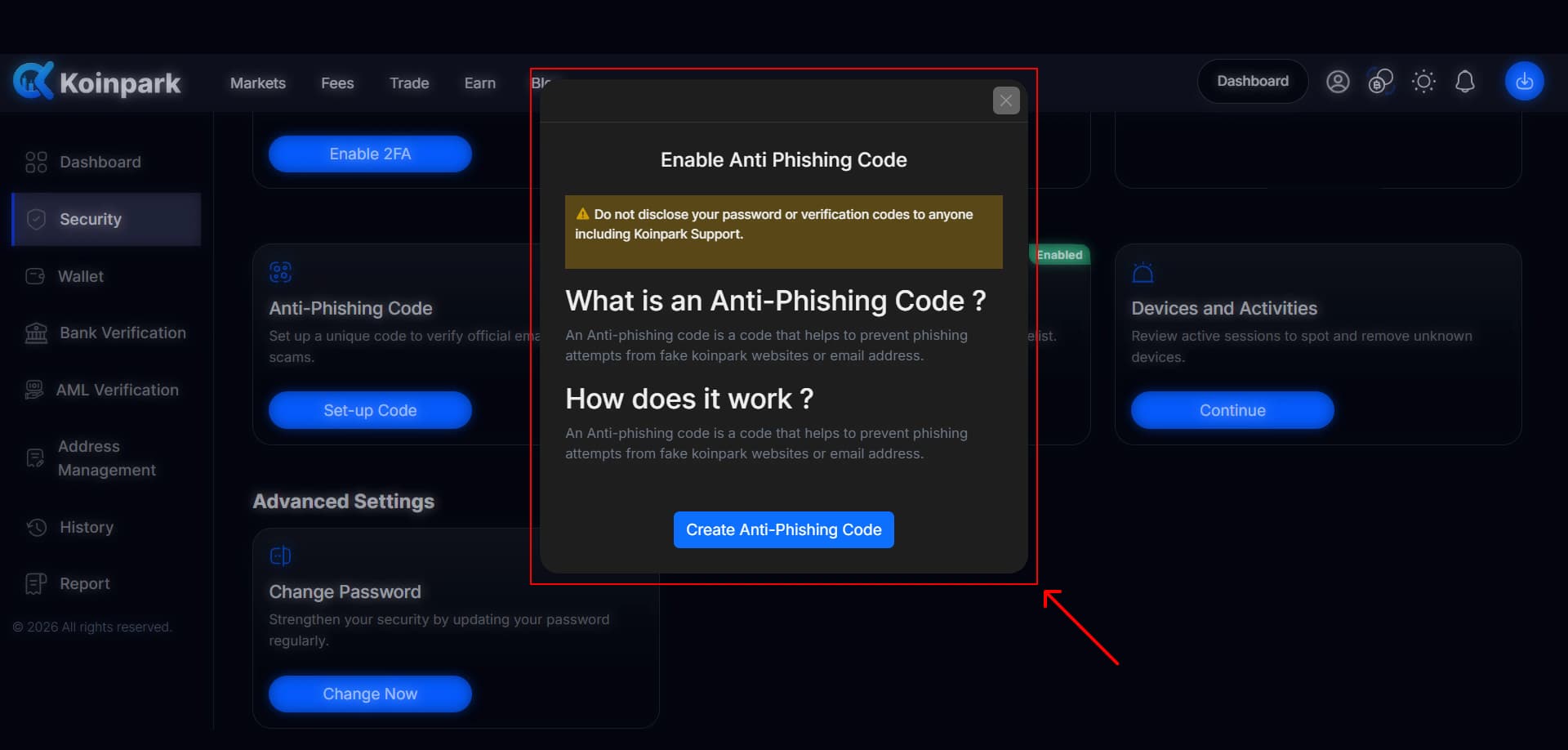
Enter a unique code based on your personal preference and click [Submit].
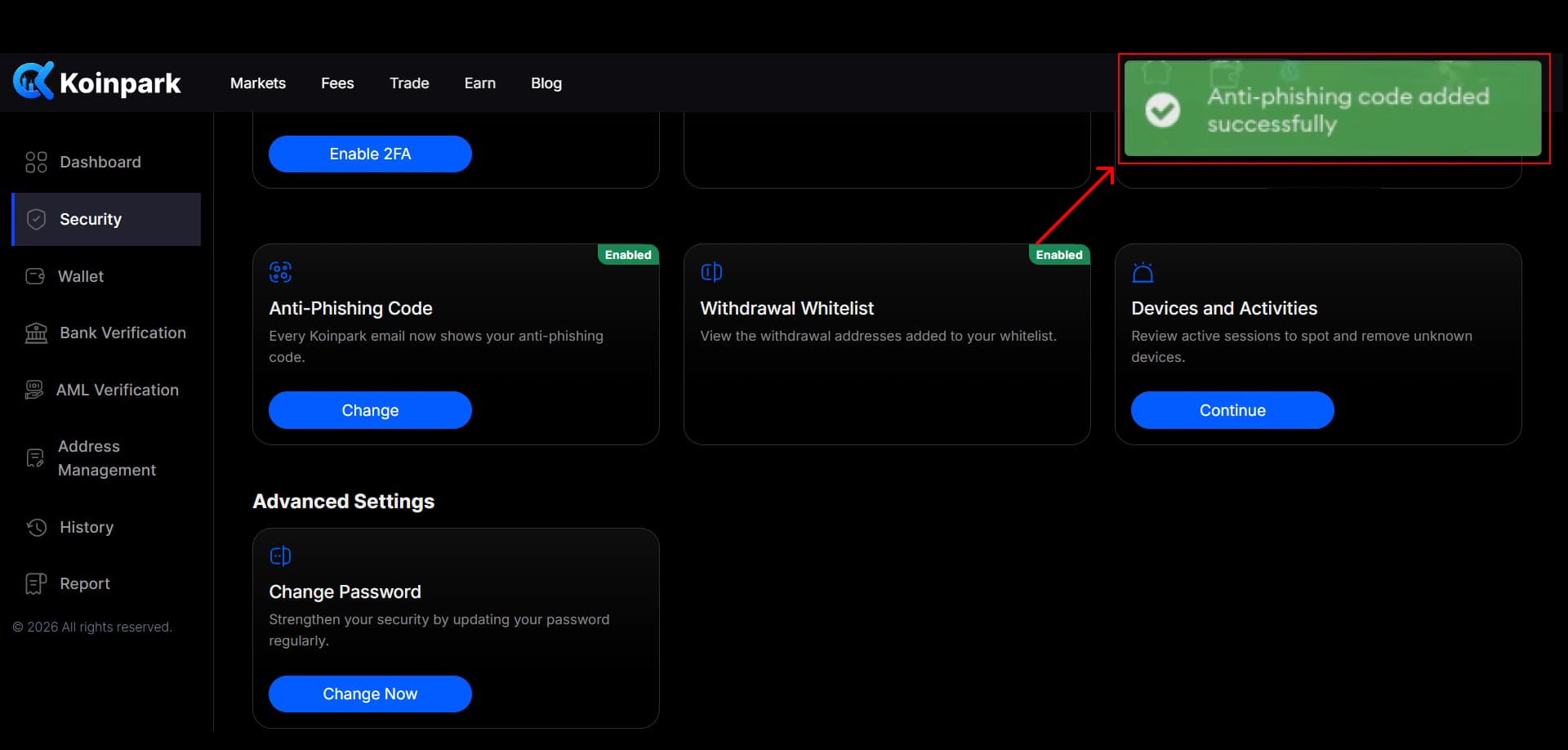
You’ll receive a confirmation message saying your anti-phishing code has been added successfully.
How to Complete Mobile Number Verification on Koinpark?
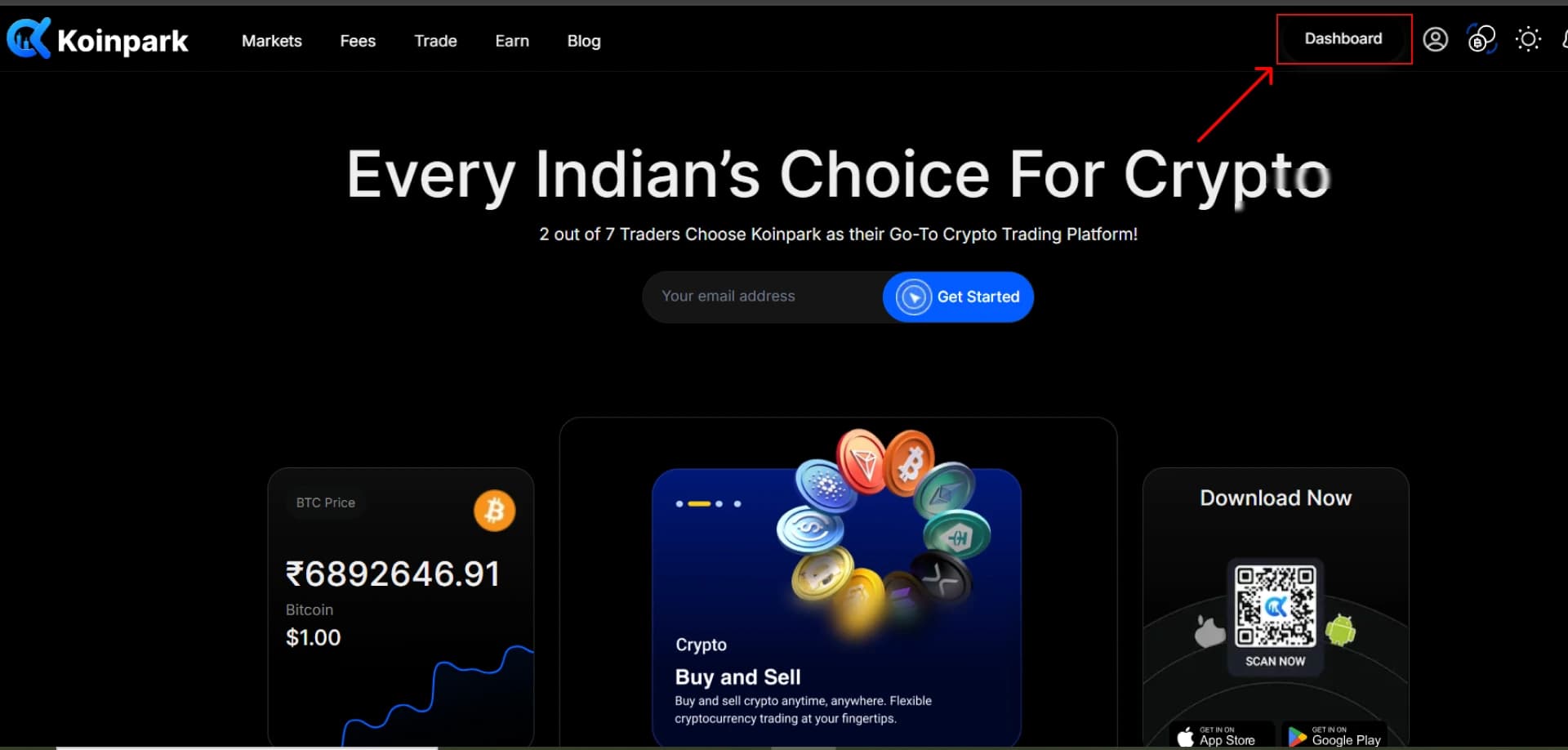
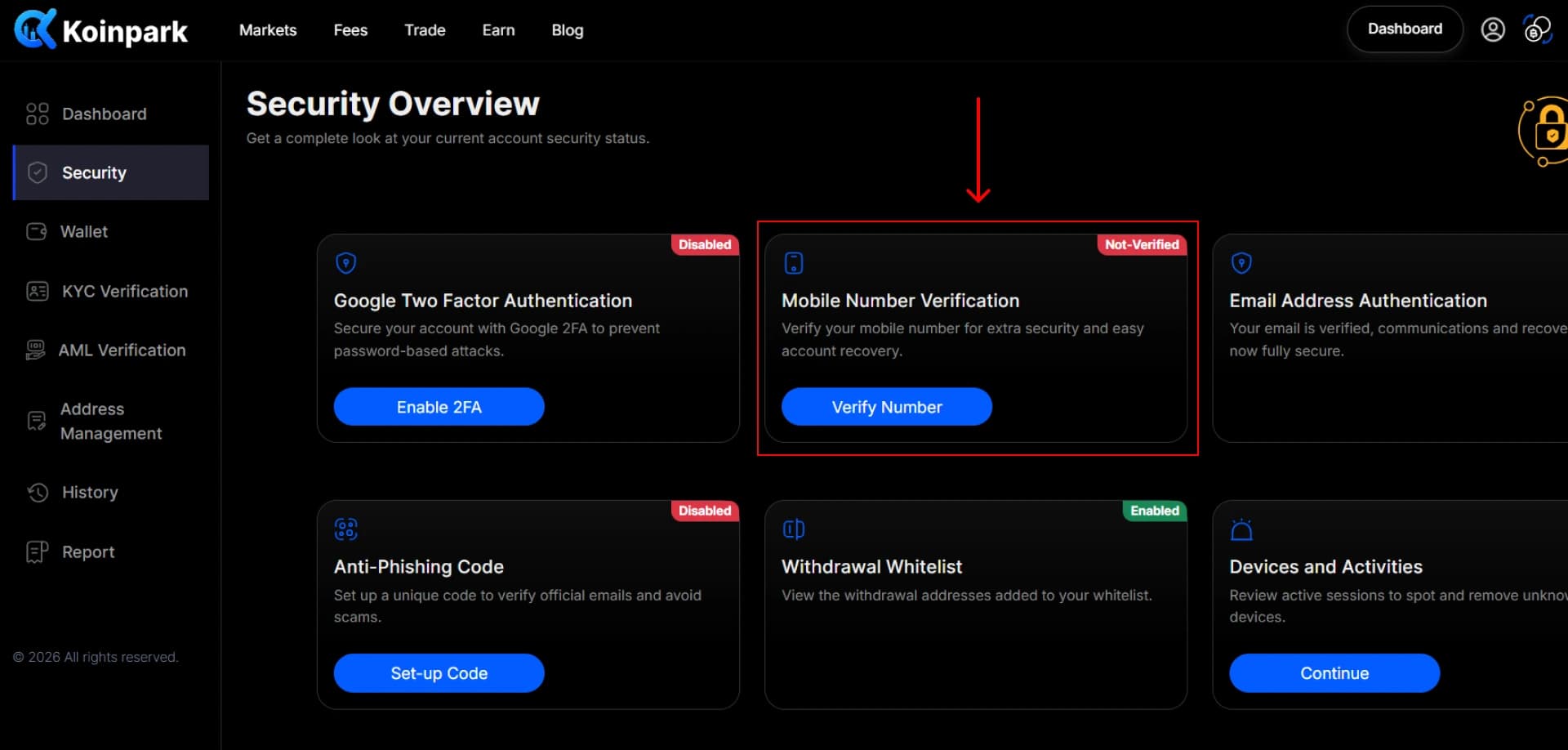
To verify your mobile number, go to your [Dashboard].
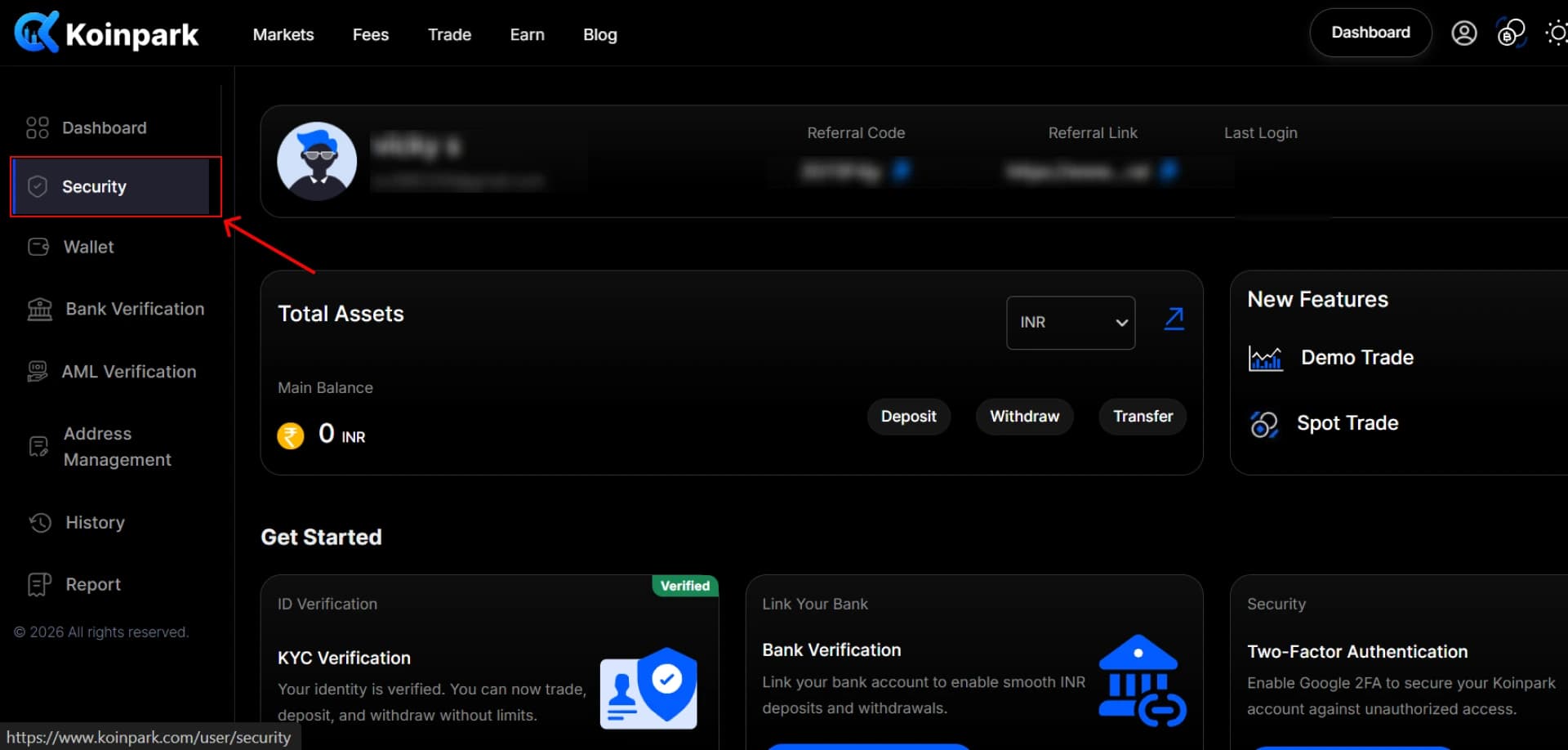
Click on the [Security] field.
Navigate to the second section labeled [Mobile Number Verification] and click [Verify Number].
Enter your [Mobile Number] and click on [Get Code].
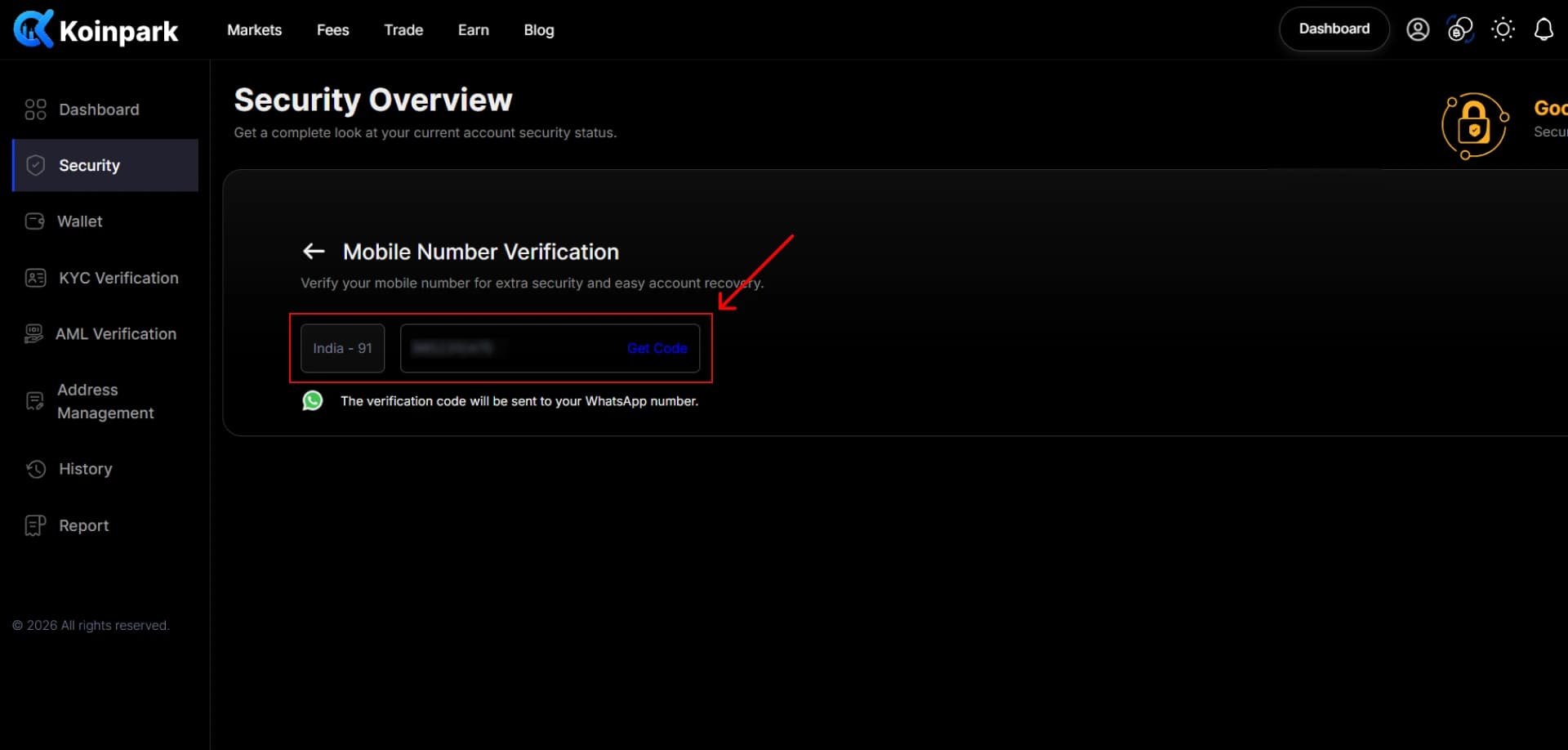
The verification code will be sent to your WhatsApp Number.
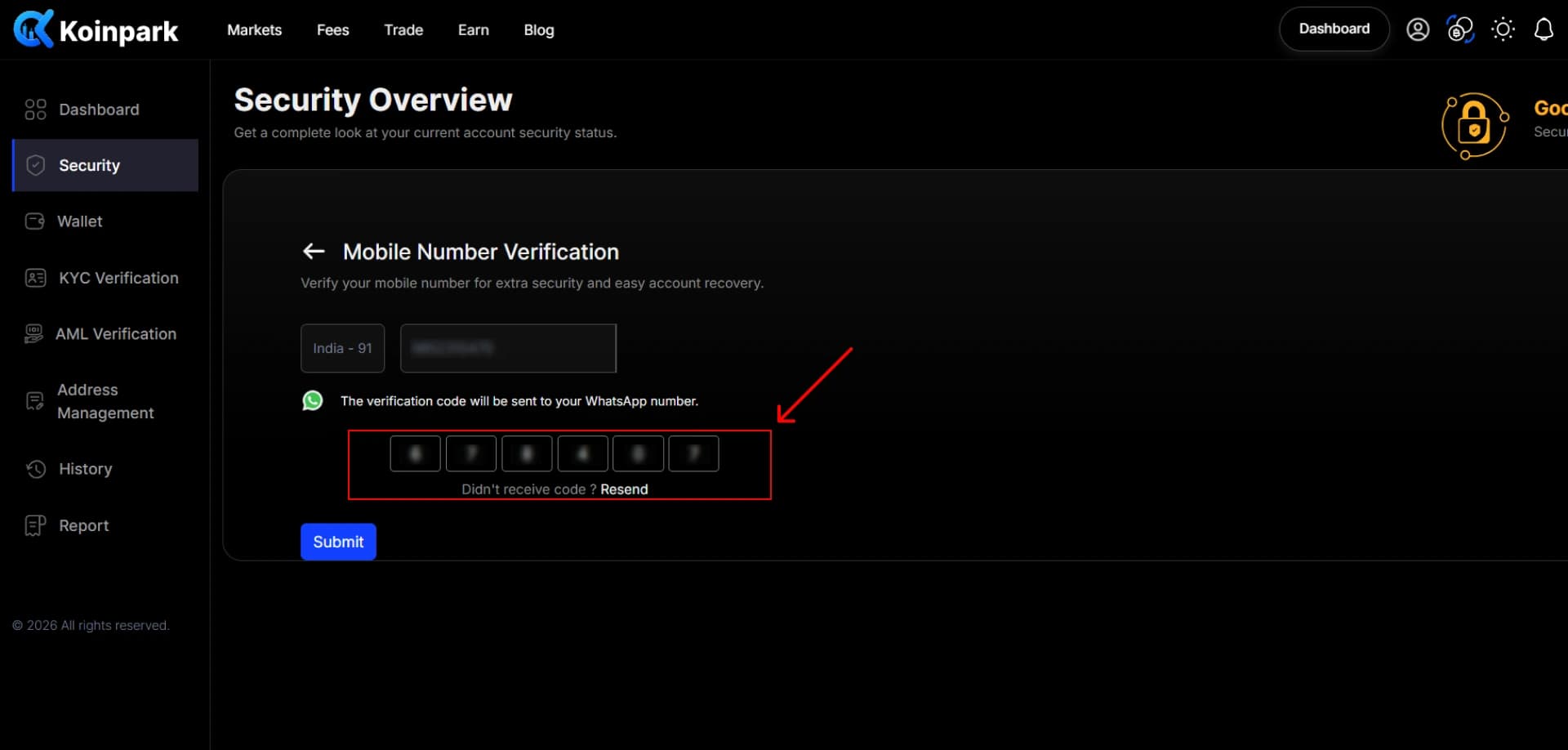
Enter the received [OTP] in the field below and click [Submit].
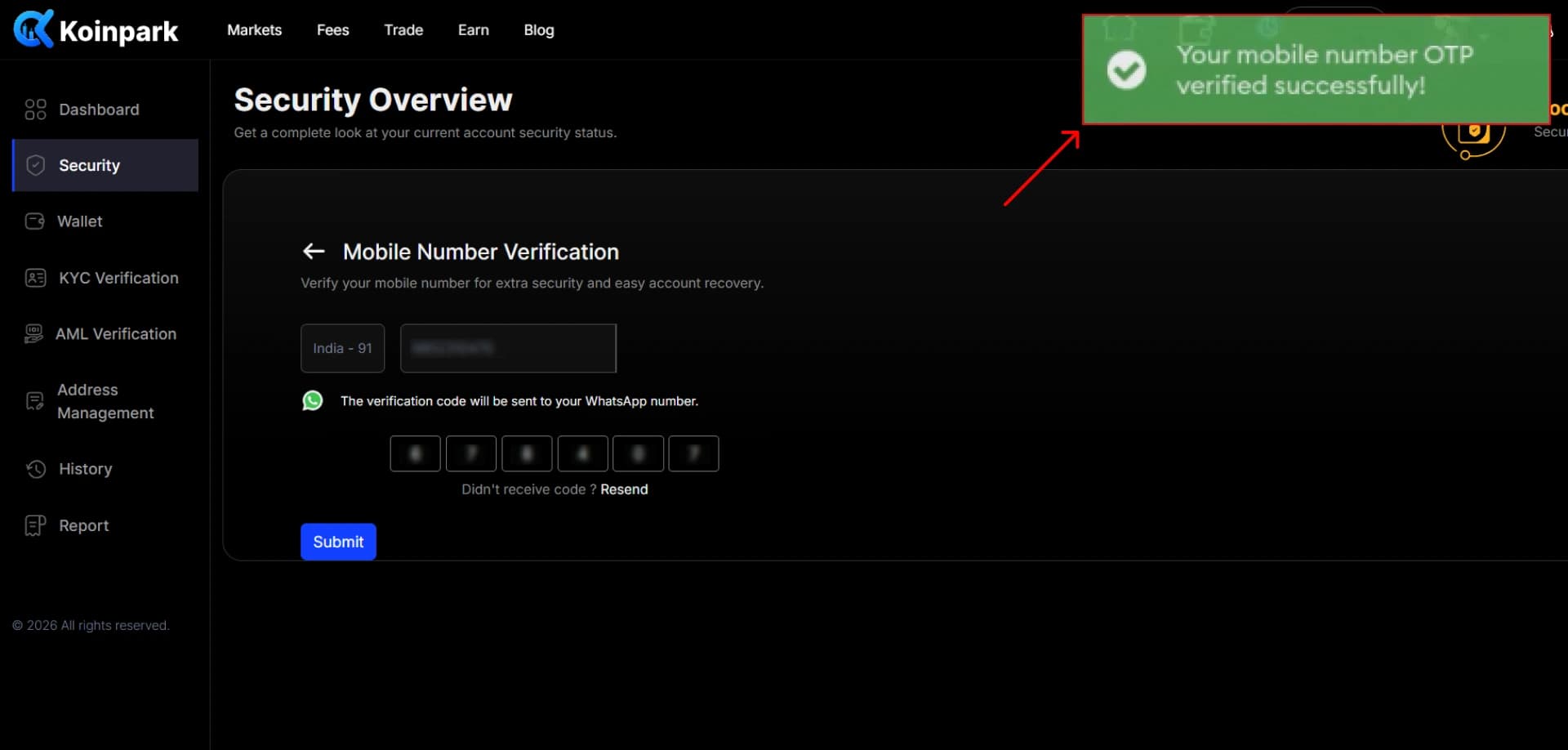
At the end, you will get a notification stating your mobile number has been verified. ✅
How to Complete Email Authentication on Koinpark?
To authenticate your email address, go to your [Dashboard].
Click on the [Security] field.
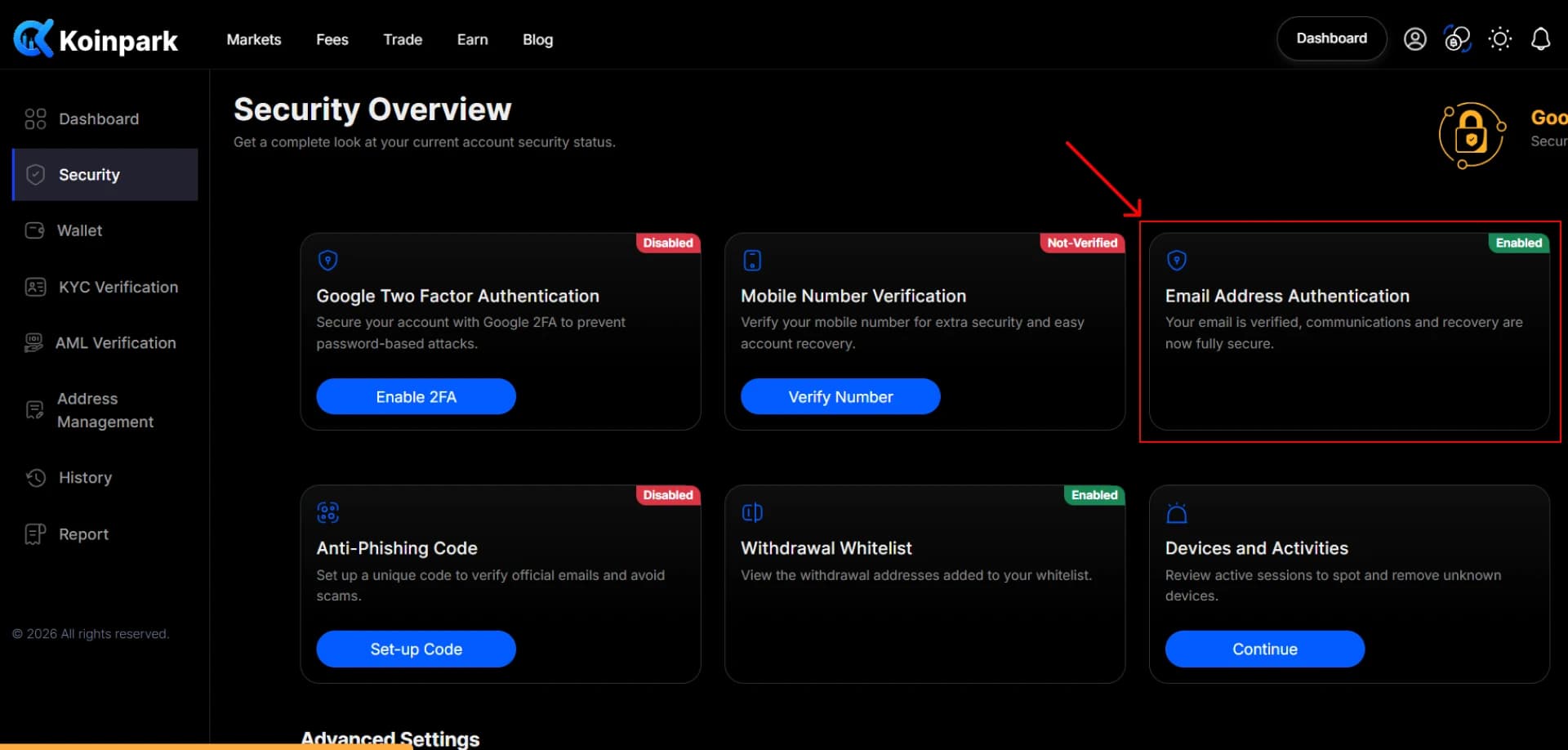
Navigate to the third section labeled [Email Address Authentication] and click [Verify Email].
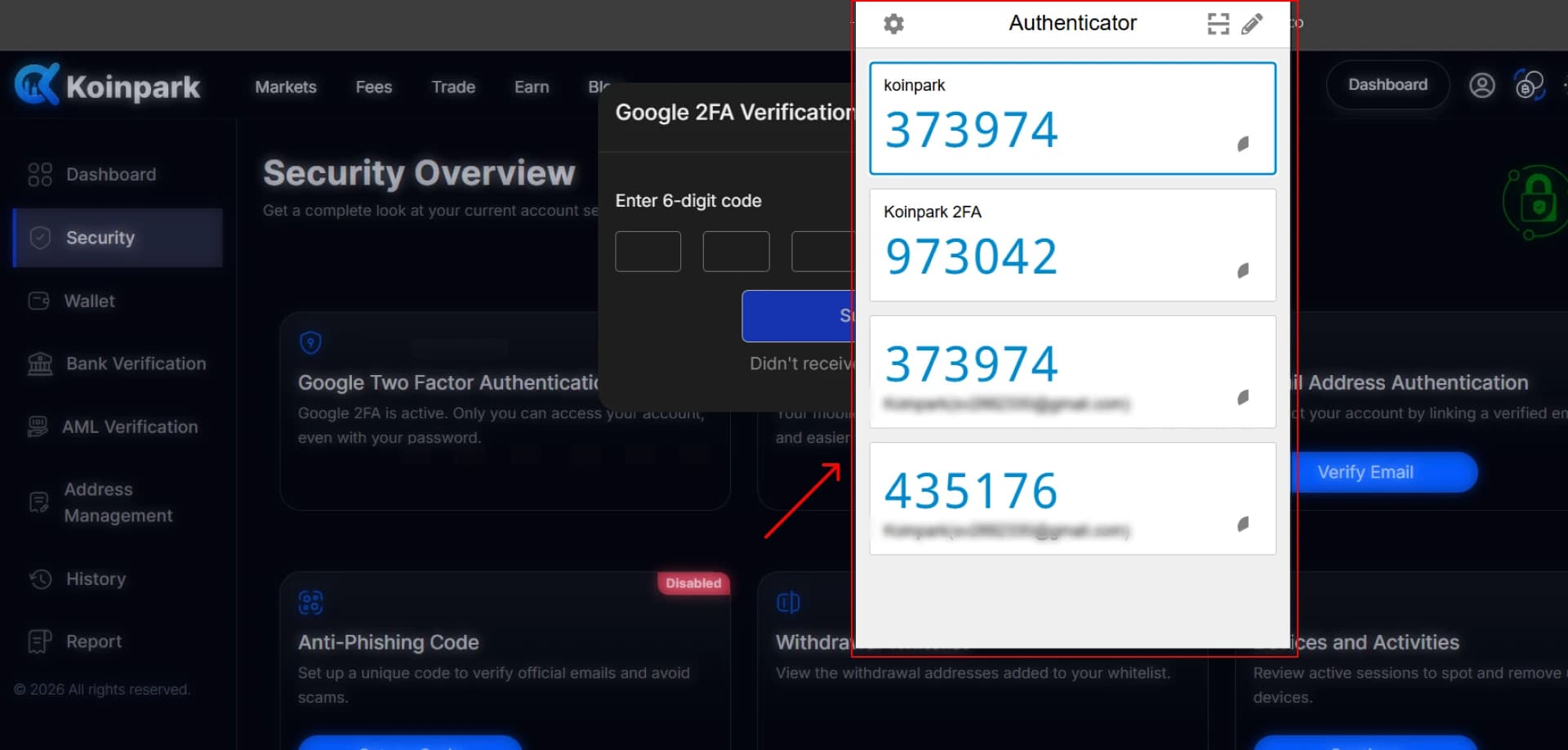
Enter the [6-digit verification code] from your Google Authenticator and click [Submit].
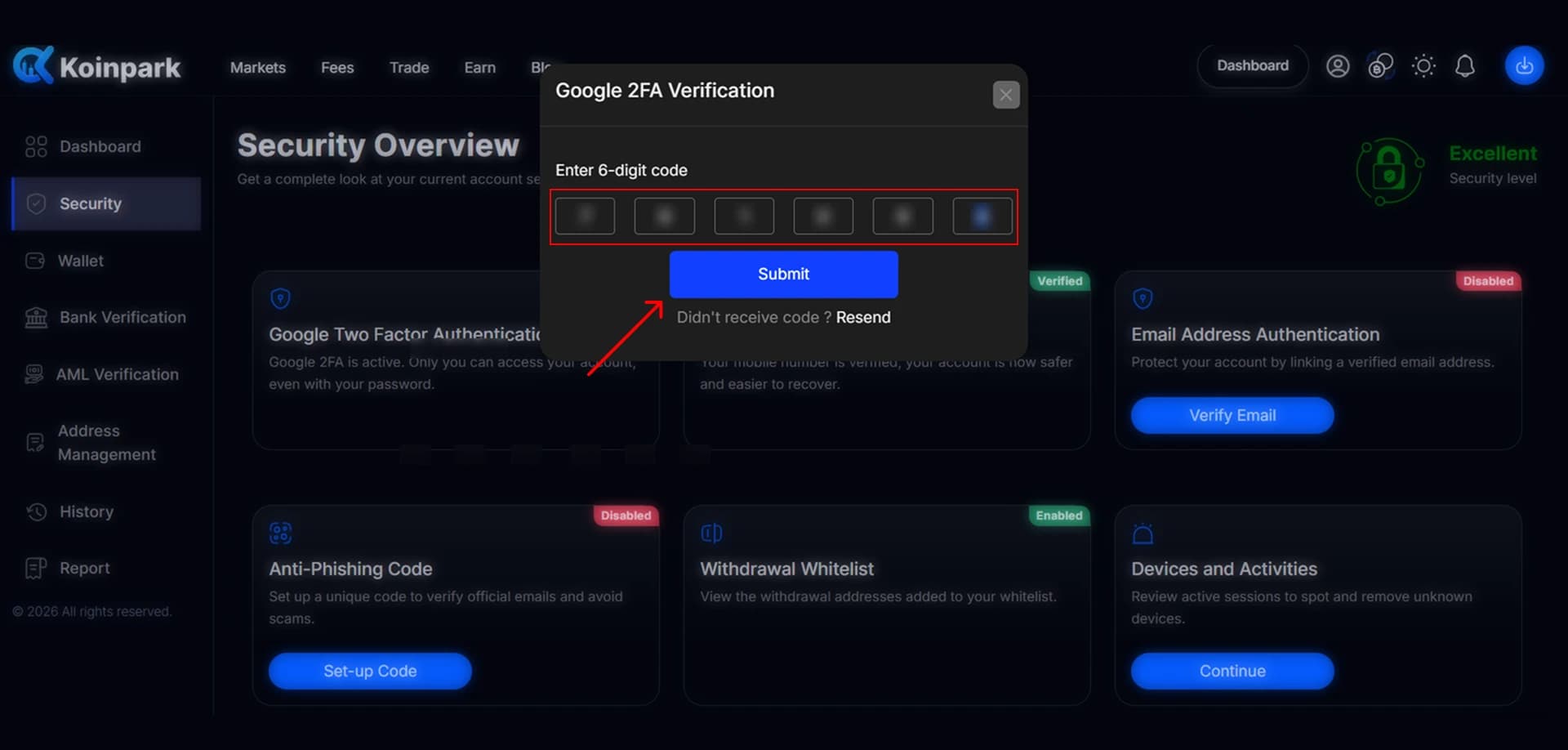
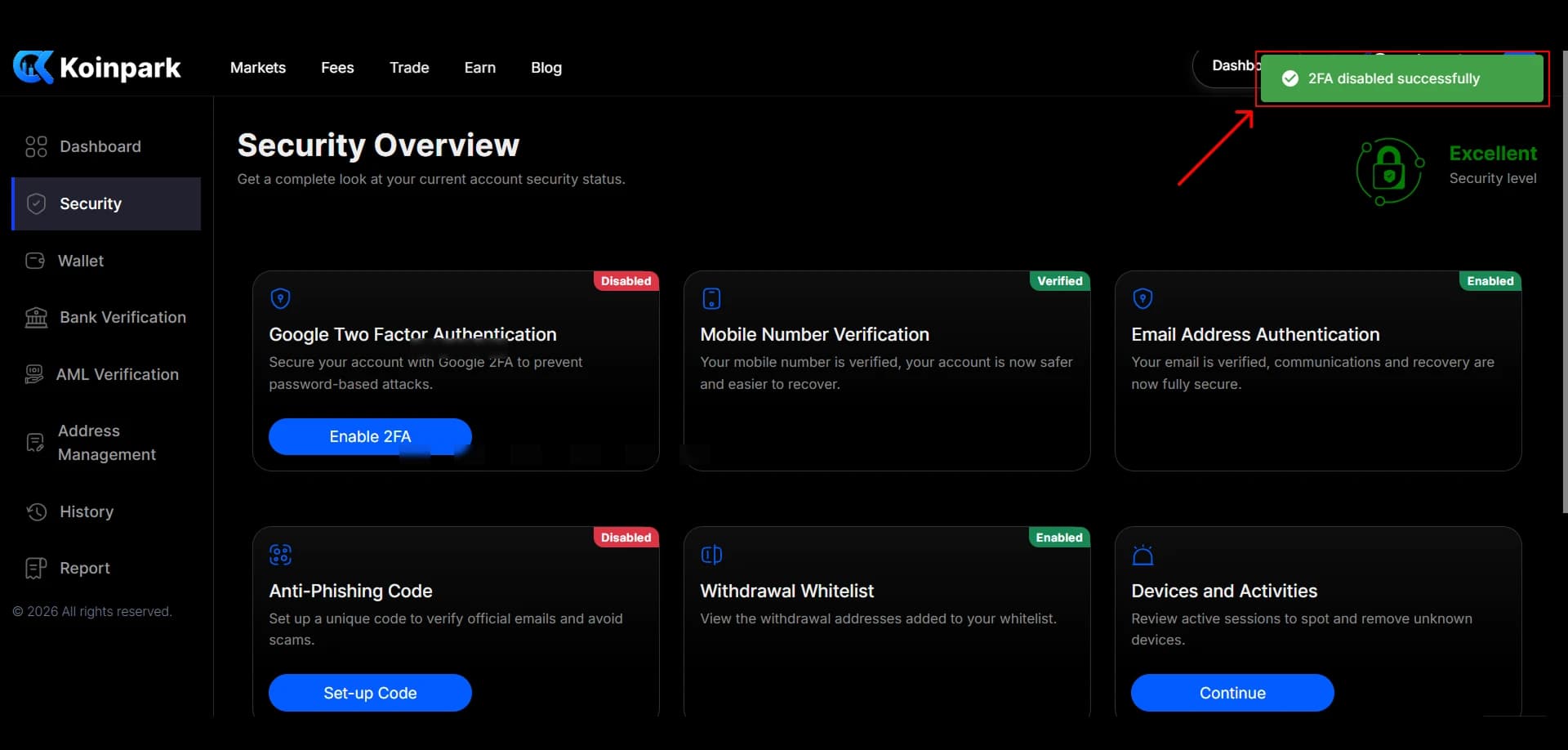
At the end, you will receive a notification stating your 2FA has been disabled successfully.
This will automatically enable your [Email Address Authentication].
How to Manage Devices and Activities on Koinpark?
Go to your [Dashboard].
Click on the [Security] field.
Scroll down to the last field, namely [Devices and Activities] and click the [Continue] button.
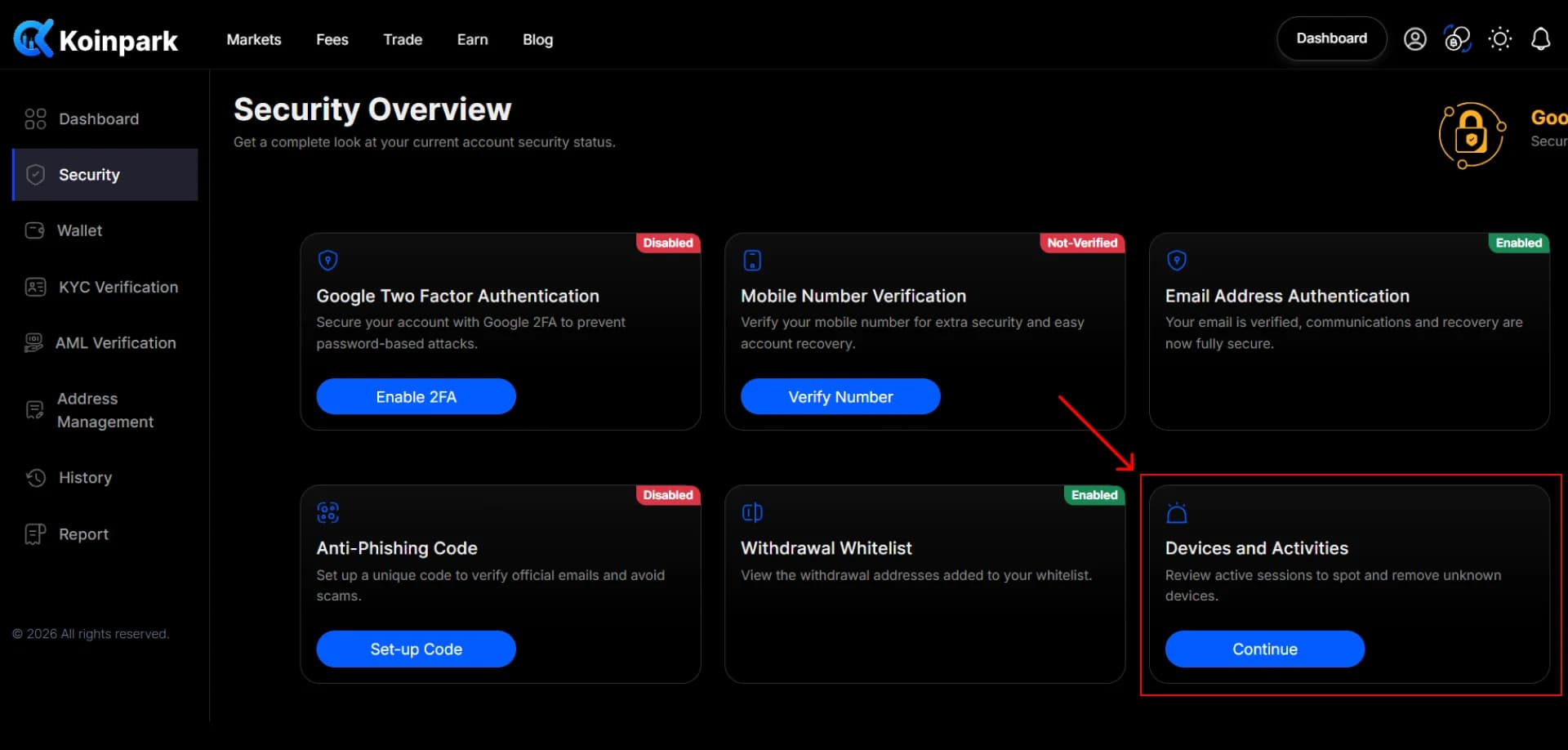
Check the listed devices and activities.
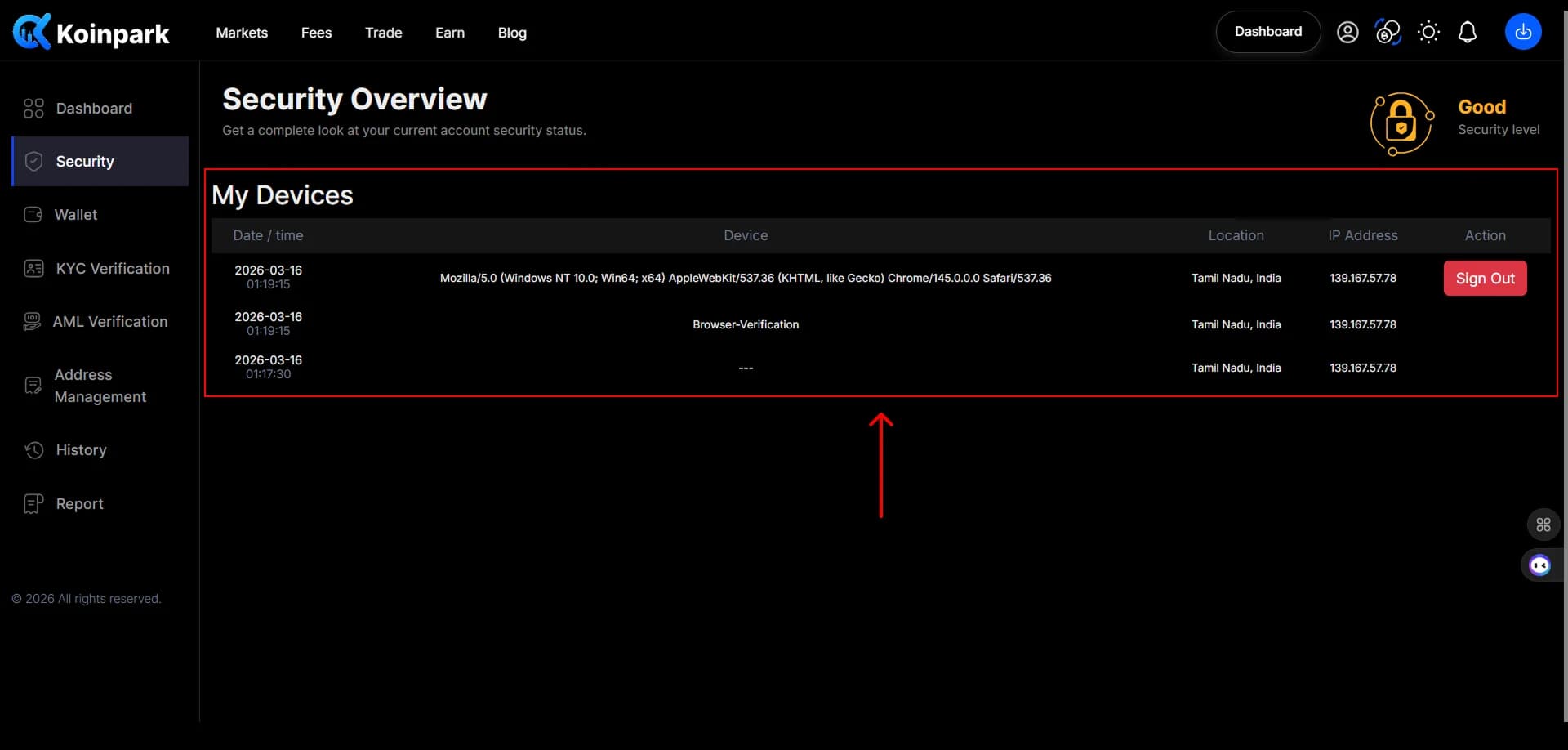
If you find any unusual sign-in activities, click on [Log Out] to secure your account.